Pinning a Location on Google Maps: Easy Steps
How to Drop a Pin on Google Maps: Easy Steps for Finding and Saving Locations
Google Maps has become an essential tool for navigation, exploration, and location sharing in our daily lives. Whether you’re planning a road trip, marking a new restaurant you want to visit, or sharing your favorite hiking trail with friends, knowing how to drop a pin on Google Maps is a valuable skill that takes just seconds to master. A pin—also called a marker—is a visual indicator that marks a specific location on the map, and it’s one of the most practical features Google Maps offers.
Dropping a pin on Google Maps is incredibly straightforward, whether you’re using a smartphone, tablet, or desktop computer. This guide will walk you through every method available, from the basic tap-and-hold technique to more advanced features like saving locations, sharing pins, and organizing your saved places. By the end of this article, you’ll be able to confidently mark any location and manage your pins like a pro.
Understanding Google Maps Pins and Markers
Before diving into the mechanics of dropping a pin, it’s helpful to understand what pins are and why they’re useful. A pin is a digital marker that identifies a specific geographic location on your map. Google Maps uses red pins by default to mark locations, and they appear as small teardrop-shaped icons. These pins serve multiple purposes: they can mark addresses you’re searching for, locations you want to save for later, places you’ve visited, or coordinates you want to share with others.
Understanding the difference between a regular search result and a dropped pin is important. When you search for a business or address, Google Maps automatically places a pin at that location. However, when you manually drop a pin, you’re creating a custom marker that stays on your map until you decide to remove it. This distinction matters because dropped pins can be saved to your favorites, shared via link, and organized into custom lists.
The beauty of pins is their versatility. They work across all Google Maps platforms—smartphone apps, web browsers, and tablets—and your pins sync across devices if you’re logged into your Google account. This means you can drop a pin on your phone while out shopping and access it later on your computer at home. For those managing home improvement projects, you might use pins to mark supply stores, contractors’ locations, or material yards, similar to how you’d organize resources for maintaining your home’s systems.
How to Drop a Pin on Mobile Devices
Dropping a pin on your smartphone or tablet is the most common way to mark locations on the go. The process differs slightly between iOS and Android devices, though both are equally simple.
Dropping a Pin on iPhone or iPad
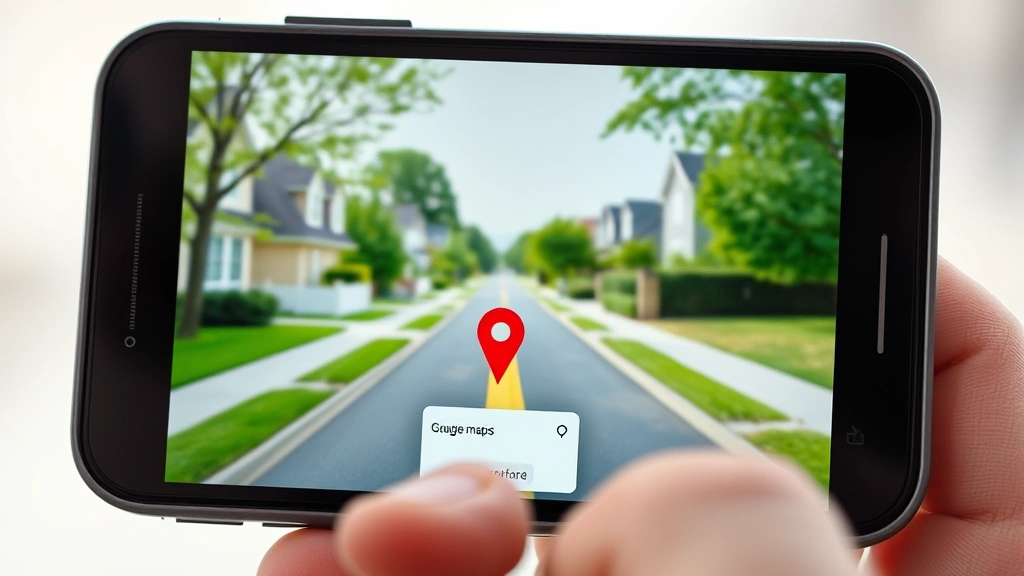
To drop a pin on an Apple device, open the Google Maps app and navigate to the location where you want to place your marker. Once you can see the area on your screen, press and hold your finger on the exact spot for about one second. A red pin will immediately appear at that location, and the address or coordinates will display in a card at the bottom of your screen. The pin is now active on your map.
If you need to adjust the pin’s location slightly, you can drag it to a new spot by holding and moving your finger. The address information will update in real-time as you move the pin. Once you’re satisfied with the location, you can save it by tapping the address card and selecting “Save” to add it to your favorites, or you can choose “Share” to send the pin’s location to friends.
Dropping a Pin on Android Devices
The process on Android is virtually identical. Open Google Maps, navigate to your desired location, and press and hold on the map for approximately one second. A red pin will drop, and an information card will appear at the bottom showing the address or coordinates. You can drag the pin to fine-tune its position, and then save or share it using the options in the information card.
Android users will notice that the saved locations appear in a “Saved” section that can be accessed from the menu. This is particularly useful if you’re tracking multiple locations for a project, such as identifying different contractors for professional services or marking supply sources.
Using Voice Commands to Drop Pins
Both iPhone and Android users can drop pins using voice commands if Google Assistant or Siri is enabled. Simply say “Hey Google, drop a pin here” or use Siri’s voice control to activate Google Maps and drop a pin. This hands-free method is particularly useful when you’re driving or have your hands full.
Dropping Pins on Desktop Google Maps
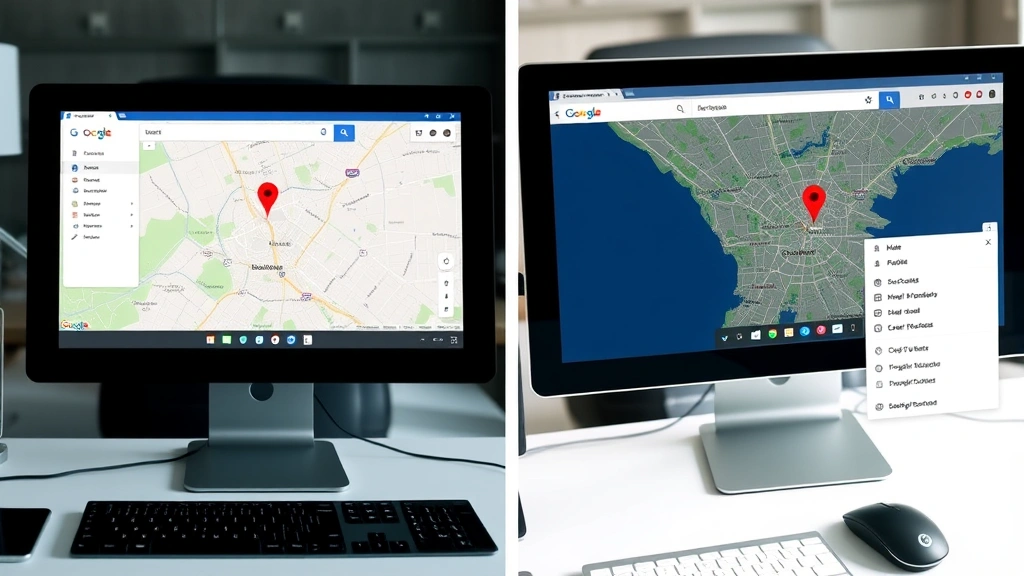
If you prefer using Google Maps on your computer, dropping a pin is equally straightforward. Open Google Maps in your web browser and navigate to the location where you want to place a marker. Right-click on the exact spot on the map where you want the pin to appear. A context menu will pop up with several options, including “Add a label” or “What’s here?” Select the appropriate option, and a pin will be placed at that location.
On desktop, you’ll see the coordinates and address displayed in a sidebar on the left side of your screen. The pin information includes options to save the location, get directions, or share it. Desktop Google Maps also allows you to edit the pin’s label, which is helpful for organizing multiple pins with descriptive names.
If you’re using the Google Maps website rather than the app, you can also click directly on the map location. Some versions of Google Maps allow you to click once on a location to see information, and then click again to drop a pin. The exact interface may vary depending on your browser and which version of Google Maps you’re accessing.
Saving and Organizing Your Pinned Locations
Simply dropping a pin is useful, but saving it ensures you can access it later. When you drop a pin and want to keep it permanently, tap or click on the information card and select “Save.” This adds the location to your “Saved” list in Google Maps. You can organize saved locations into custom lists such as “Restaurants to Try,” “Home Improvement Stores,” or “Weekend Getaways.”
To create a custom list on mobile, open the Google Maps app, tap your profile icon, and select “Your places.” From there, you can create new lists and add saved pins to them. On desktop, access your saved places through the menu and use the same process. This organizational system is invaluable if you’re managing multiple home improvement projects and need to keep track of different suppliers, material sources, or contractor locations. It’s similar to how you might organize resources when tackling guides like automotive maintenance or household appliance care.
Google Maps also automatically saves your search history, which means locations you’ve searched for or visited are accessible through your timeline and history features. You can access this information to revisit locations without needing to search again.
Sharing Pins with Friends and Family
One of the most practical uses for dropped pins is sharing location information with others. When you drop a pin, you can share it in multiple ways. The most direct method is to tap the information card and select “Share.” This generates a shareable link that you can send via text message, email, social media, or any messaging app.
When someone receives a shared pin link, they can open it in Google Maps on their device, and the pin will appear on their map. They don’t need to have the exact address memorized or spend time searching—the location is instantly visible. This is particularly useful for coordinating meeting points, sharing new discoveries, or providing directions to your home or business.
You can also share pins directly through Google’s “Share your location” feature, which allows real-time location sharing for a set period. This is different from dropping a pin, as it shares your actual current location rather than a static point on the map. However, both features serve important functions for communication and coordination.
Advanced Pin Features and Customization
Beyond basic pin dropping, Google Maps offers several advanced features that enhance your experience. One useful feature is the ability to add custom labels to pins. When you drop a pin on desktop, you can immediately type a custom name for the location, which helps you remember why you pinned it. On mobile, you can edit the pin’s label after dropping it by tapping the information card and selecting “Edit label.”
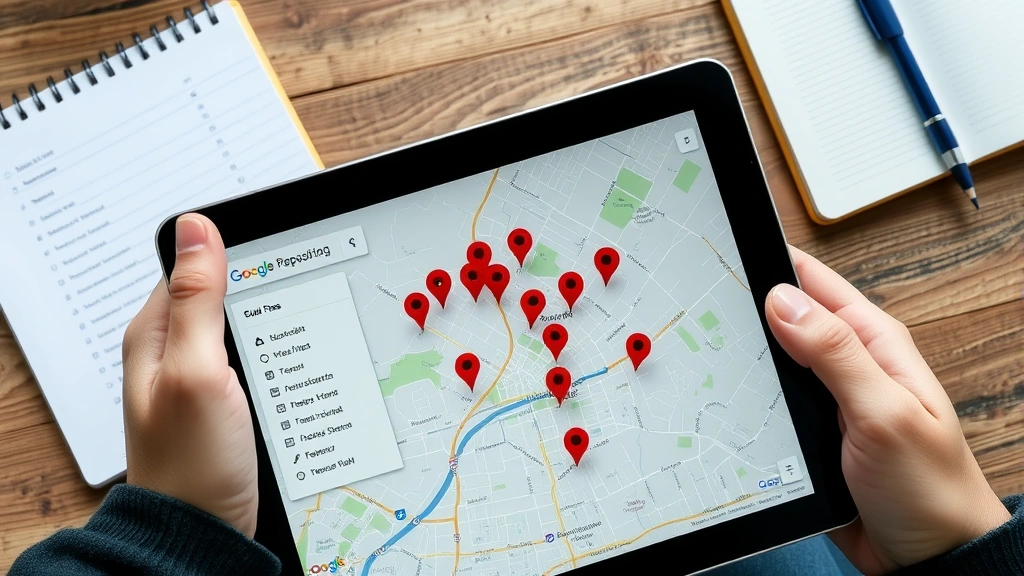
Google Maps also allows you to create multiple pins and view them all at once on the same map. This is helpful for planning routes that involve multiple stops or comparing different locations. You can drop pins for several potential contractors or supply stores, then compare their locations visually on your map before deciding which to visit first.
Another advanced feature is the ability to export your pins and saved locations. Through Google Takeout, you can download all your Google Maps data, including your saved places and pins, in various formats. This is useful for backup purposes or if you want to use your location data in other applications.
For those who frequently drop pins, Google Maps offers keyboard shortcuts on desktop that streamline the process. Learning these shortcuts can significantly speed up your workflow if you’re regularly marking locations for planning purposes.
Troubleshooting Common Pin Issues
While dropping pins on Google Maps is generally straightforward, you may occasionally encounter issues. If a pin won’t drop, ensure you have a stable internet connection and that Google Maps is updated to the latest version. On mobile devices, try closing and reopening the app. On desktop, try refreshing the page or clearing your browser cache.
If your pins aren’t saving, verify that you’re logged into your Google account. Pins only save and sync across devices when you’re authenticated. Additionally, check your Google account’s privacy settings to ensure location services are enabled.
Sometimes pins may appear in the wrong location due to GPS inaccuracy or map data discrepancies. If this happens, simply drag the pin to the correct location. You can also report inaccurate map data directly to Google through the “Report a problem” feature in the app or website.
If you’re having trouble sharing pins, ensure the recipient has a compatible device and that you’re using a current version of Google Maps. Some older devices or browsers may have limited compatibility with shared pin links.
For comprehensive support, consult Google Maps Help Center, which provides detailed troubleshooting guides. You can also visit This Old House for home improvement location planning, or Family Handyman for project-related resources that might benefit from location mapping.
FAQ
Can I drop a pin on Google Maps without saving it?
Yes, you can drop a pin temporarily without saving it. The pin will remain on your map during your current session, but it will disappear when you close the app or refresh the page. To keep it permanently, you must save the location to your Google Maps account.
How many pins can I drop on Google Maps?
There’s no official limit to the number of pins you can drop on Google Maps. However, dropping hundreds of pins on a single map may slow down performance. For organizing large numbers of locations, Google recommends using custom lists to keep your saved places organized and manageable.
Can I change the color of a dropped pin?
The standard Google Maps interface doesn’t allow you to change pin colors directly. However, if you’re using Google My Maps (a separate service), you can customize pin colors and icons extensively. Standard Google Maps pins remain red by default.
Will my dropped pins be visible to others?
No, your dropped pins are private by default and visible only to you. They won’t appear on other people’s maps unless you specifically share a pin link or use the shared location feature. When you share a pin link, the recipient can see that specific location, but they won’t see your other pins or saved places.
Can I drop a pin using coordinates?
Yes, you can drop a pin at specific coordinates by entering the latitude and longitude in Google Maps’ search bar. The format should be “latitude, longitude” (for example, “40.7128, -74.0060”). Google Maps will navigate to that exact location and allow you to drop a pin there.
How do I delete a dropped pin?
To delete a saved pin on mobile, open your saved places, find the location, and swipe left (iOS) or long-press (Android) to delete it. On desktop, access your saved places and click the delete option next to the location. Temporary pins (not saved) will disappear when you close the app or refresh the page.
Can I use dropped pins for navigation?
Absolutely. Once you’ve dropped a pin or saved a location, you can tap the information card and select “Directions” to get turn-by-turn navigation to that pin. This works the same as searching for an address directly, making it convenient for revisiting frequently pinned locations.

Related Posts
Remove Security Tags at Home? Expert Tips Inside
Remove a Bathtub Drain? Expert Tips Inside