
Master Double Spacing in Word for Cleaner, Professional Docs
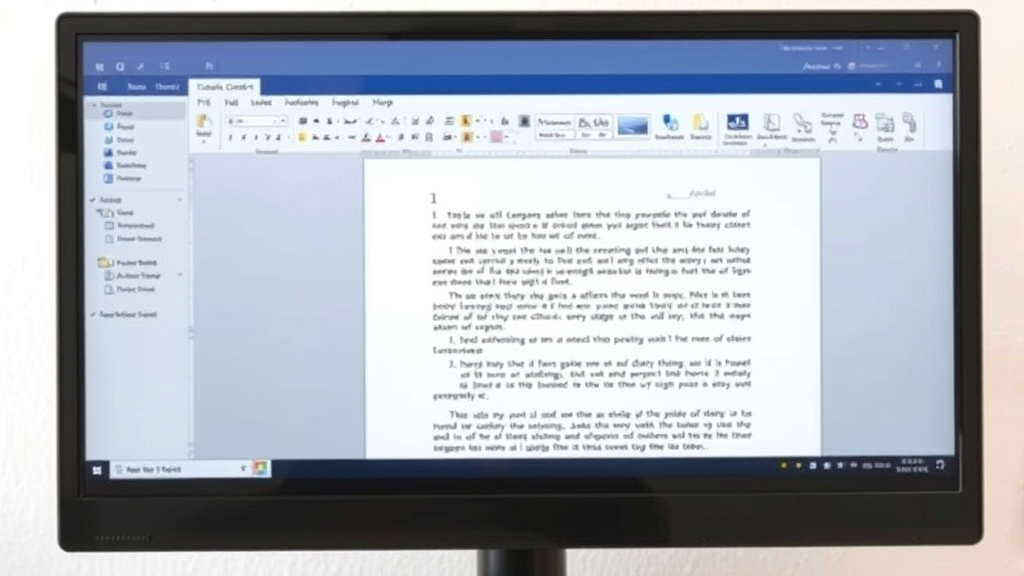
Proper document formatting is essential for creating professional, readable documents that make a lasting impression. Whether you’re a student submitting an academic paper, a professional preparing a business report, or a writer crafting a manuscript, understanding how to double space in Word can significantly enhance your document’s readability and professional appearance.
Double spacing creates visual breathing room between lines of text, making documents easier to read and review. This formatting standard is widely required in academic institutions, publishing houses, and many professional environments. Microsoft Word offers multiple methods to achieve perfect double spacing, from simple keyboard shortcuts to detailed paragraph formatting options.
Understanding Double Spacing and Its Importance
Double spacing refers to the vertical space between lines of text in a document. When text is double-spaced, there’s essentially a blank line’s worth of space between each line of actual text. This formatting technique serves multiple purposes in professional and academic writing.
The primary benefit of double spacing is improved readability. When lines of text are too close together, readers can experience eye strain and may lose their place while reading. Double spacing provides visual relief and makes it easier to follow text from one line to the next. This is particularly important for lengthy documents where reader fatigue can become a significant concern.
In academic settings, double spacing is often mandatory for several practical reasons. Professors and reviewers use the extra space for handwritten comments and corrections. The additional white space also makes it easier to spot errors during proofreading and editing processes. Many style guides, including APA, MLA, and Chicago styles, specifically require double spacing for academic papers and publications.
Professional documents also benefit from double spacing, especially when they require review or collaboration. Business reports, legal documents, and manuscripts often use double spacing to facilitate the review process. The extra space allows reviewers to make notes directly on printed copies and provides a cleaner, more professional appearance.
Quick Methods to Double Space in Word
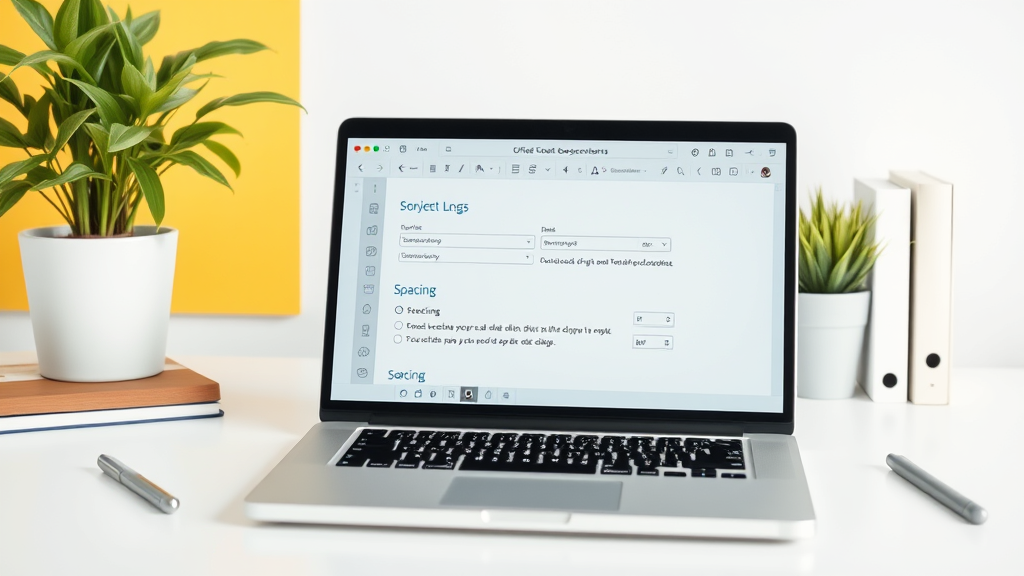
Microsoft Word provides several quick and efficient methods to apply double spacing to your documents. The fastest approach is using the keyboard shortcut Ctrl+2 (on Windows) or Cmd+2 (on Mac). This shortcut instantly applies double spacing to selected text or the current paragraph where your cursor is positioned.
Another rapid method involves using the Line Spacing button in the Home tab of Word’s ribbon interface. Located in the Paragraph group, this button displays as stacked horizontal lines with arrows. Clicking this button reveals a dropdown menu with spacing options, including 2.0 for double spacing. This visual approach is particularly helpful for users who prefer menu-driven interfaces over keyboard shortcuts.
For users who frequently work with documents requiring specific formatting, similar to how professionals need to know how to recall an email in outlook for effective communication, mastering these quick formatting techniques becomes essential for efficiency.
The Format Painter tool offers another quick solution for applying double spacing across multiple sections. After formatting one paragraph with double spacing, you can select that paragraph, click the Format Painter button, and then apply the same formatting to other sections by clicking or dragging across the desired text.
Advanced Paragraph Formatting Options
For more precise control over spacing, Word’s Paragraph dialog box provides comprehensive formatting options. Access this feature by right-clicking on text and selecting “Paragraph” from the context menu, or by clicking the small arrow in the bottom-right corner of the Paragraph group in the Home tab.
Within the Paragraph dialog box, the Line spacing section offers several options beyond basic double spacing. The “Exactly” option allows you to specify precise point measurements for line spacing, while “Multiple” enables custom spacing ratios. For standard double spacing, select “Double” from the dropdown menu, which automatically sets the spacing to 2.0.
The “At” field becomes active when using “Exactly” or “Multiple” options, allowing for fine-tuned adjustments. This level of control is particularly valuable when working with documents that must meet specific formatting requirements or when combining different font sizes within the same document.
Advanced users can also modify spacing before and after paragraphs in this dialog box. These settings control the vertical space above and below each paragraph, which can be crucial for maintaining consistent document appearance while meeting specific formatting guidelines.
Formatting Your Entire Document
When working with lengthy documents, applying double spacing to the entire document at once saves significant time and ensures consistency. The most efficient approach is to select all text using Ctrl+A (Windows) or Cmd+A (Mac), then apply your preferred spacing method.
For new documents, you can establish double spacing as the default by modifying the Normal style. Right-click on “Normal” in the Styles gallery, select “Modify,” and adjust the line spacing to double. This approach ensures that all new text automatically follows double spacing rules, similar to how understanding how to right click on a mac becomes second nature for efficient navigation.
Document templates provide another excellent method for maintaining consistent formatting across multiple documents. Create a template with your preferred double spacing settings, and use it as the foundation for new documents. This approach is particularly valuable for organizations that require standardized document formatting.
When working with existing documents that contain mixed formatting, use the Clear Formatting option before applying double spacing. This ensures that previous formatting doesn’t interfere with your spacing adjustments and creates a clean foundation for consistent formatting throughout the document.

Troubleshooting Common Spacing Issues
Several common issues can interfere with proper double spacing implementation. One frequent problem occurs when users accidentally apply multiple spacing formats to the same text. This can result in inconsistent spacing that appears unprofessional and difficult to read.
Paragraph spacing settings can also conflict with line spacing, creating unexpected results. If your double spacing appears too wide or too narrow, check both the line spacing and paragraph spacing settings in the Paragraph dialog box. Ensure that “Before” and “After” spacing values are set appropriately for your document type.
Hidden formatting characters sometimes cause spacing irregularities. Enable the Show/Hide button (¶) in the Home tab to reveal hidden characters like extra spaces, tabs, or paragraph breaks that might be affecting your spacing. These characters often accumulate when copying and pasting text from other sources.
Font-specific issues can also impact spacing appearance. Some fonts have different baseline measurements, which can make double spacing appear inconsistent even when settings are correct. If you notice spacing variations, ensure that your entire document uses the same font family and size.
Understanding these technical aspects of document formatting is as important as mastering other fundamental skills, whether it’s knowing how to multiply fractions for mathematical work or how to schedule a text on iphone for effective communication planning.
Best Practices for Professional Documents
Professional document formatting extends beyond simple double spacing to encompass comprehensive design principles. Consistency remains the most critical factor in professional document presentation. Once you establish spacing parameters, maintain them throughout the entire document to create a polished, cohesive appearance.
Consider your audience and document purpose when determining spacing requirements. Academic papers typically require strict adherence to style guide specifications, while business documents may allow more flexibility in formatting choices. Research industry standards and organizational preferences before finalizing your formatting decisions.
Margin settings work in conjunction with line spacing to create optimal readability. The Microsoft Word default margins of one inch on all sides generally complement double spacing well, but adjust as needed based on your specific requirements.
Font selection significantly impacts the effectiveness of double spacing. Standard fonts like Times New Roman, Arial, or Calibri work well with double spacing, while decorative or condensed fonts may require spacing adjustments to maintain readability.
Print preview functionality allows you to assess your formatting choices before finalizing documents. Use this feature to evaluate how your double spacing appears on paper, as screen appearance can sometimes differ from printed output. This step is particularly important for documents that will be distributed in hard copy format.
For academic writing, consult resources like the Purdue Online Writing Lab for specific formatting guidelines. Different style guides have varying requirements for spacing, margins, and overall document structure.
Frequently Asked Questions
What is the keyboard shortcut for double spacing in Word?
The keyboard shortcut for double spacing in Microsoft Word is Ctrl+2 on Windows computers and Cmd+2 on Mac computers. This shortcut applies double spacing to the selected text or the paragraph where your cursor is currently positioned. You can also use Ctrl+1 for single spacing and Ctrl+5 for 1.5 spacing.
How do I apply double spacing to my entire document at once?
To apply double spacing to your entire document, first select all text by pressing Ctrl+A (Windows) or Cmd+A (Mac). Then use the keyboard shortcut Ctrl+2 or Cmd+2, or go to the Home tab, click the Line Spacing button in the Paragraph group, and select 2.0 from the dropdown menu. This will apply double spacing to your entire document instantly.
Why does my double spacing look different in different parts of my document?
Inconsistent double spacing usually occurs due to mixed formatting within the document. Different fonts, font sizes, or additional paragraph spacing settings can cause variations in appearance. To fix this, select all text, clear formatting using Ctrl+Spacebar, and then reapply your desired font and double spacing consistently throughout the document.
Can I set double spacing as my default for all new documents?
Yes, you can set double spacing as your default by modifying the Normal style. Right-click on “Normal” in the Styles gallery, select “Modify,” change the line spacing to double, and click “OK.” Check the box that says “New documents based on this template” to make double spacing the default for all future documents.
How do I double space only specific paragraphs instead of the entire document?
To apply double spacing to specific paragraphs, simply select the paragraphs you want to format by clicking and dragging over them. Then apply double spacing using Ctrl+2 (Windows) or Cmd+2 (Mac), or use the Line Spacing button in the Home tab. Only the selected paragraphs will be affected, leaving the rest of your document unchanged.
What’s the difference between line spacing and paragraph spacing?
Line spacing controls the vertical distance between lines of text within the same paragraph, while paragraph spacing controls the space before and after entire paragraphs. Double spacing specifically refers to line spacing set to 2.0. Paragraph spacing is additional space that appears above and below paragraphs and is measured in points.
Is double spacing required for all academic papers?
Double spacing requirements vary by institution and style guide. Most academic style guides, including APA, MLA, and Chicago styles, do require double spacing for submitted papers. However, always check with your instructor or institution for specific formatting requirements, as some may have different preferences or requirements for certain types of assignments.

Related Posts

How Long to Boil Lobster Tails: Cooking Guide

How Long to Fly from New York to London? Travel Times
