
How to Archive Amazon Orders: Step-by-Step Guide
How to Archive Amazon Orders: Step-by-Step Guide
Your Amazon order history is like a digital filing cabinet that grows exponentially over time. Whether you’re a casual shopper or someone who treats Amazon like a second home, your account can quickly become cluttered with hundreds of completed purchases. The good news? Amazon gives you a powerful organizational tool that most people don’t even know exists: order archiving.
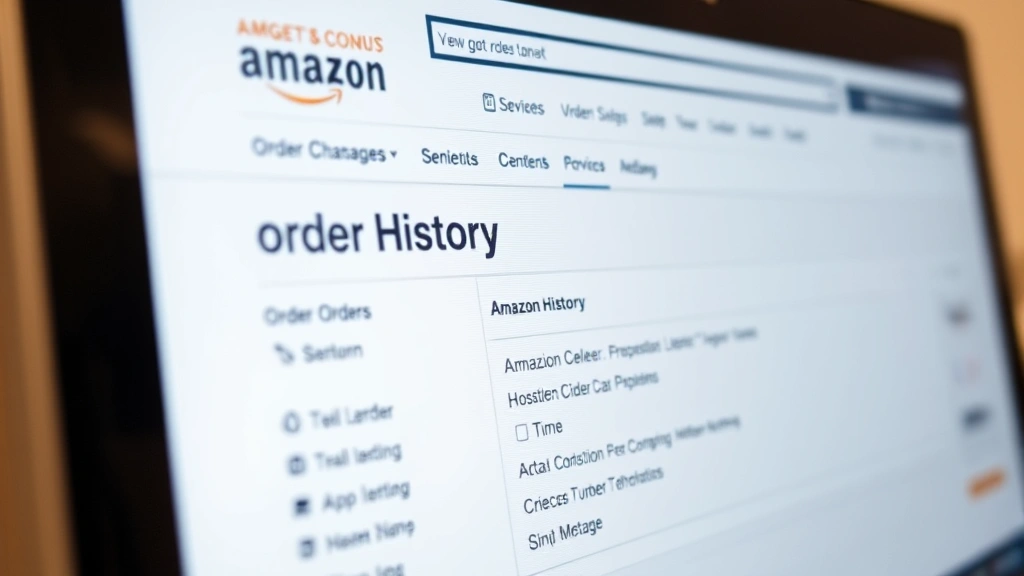
Archiving orders isn’t about deleting them—it’s about decluttering your active order list while keeping your purchase history intact for future reference. Think of it as moving old files to a storage box. They’re still yours, still accessible, but they’re no longer taking up mental real estate in your primary workspace. This guide walks you through the entire process, from understanding why you’d want to archive orders to mastering the technical steps on any device.
If you’re the type who likes keeping things organized across all your digital platforms, you’ll appreciate how archiving works similarly to other management tasks. For instance, just as you might retract an email in Outlook to clean up your communication, archiving Amazon orders helps you maintain a streamlined shopping experience.
Why Archive Your Amazon Orders?
Before diving into the technical steps, let’s talk about the real value proposition here. Archiving orders serves several practical purposes that can genuinely improve your Amazon experience.
Clutter Reduction: Your “Returns” and “Orders” pages become infinitely more manageable when you’re not scrolling through years of ancient purchases. Imagine trying to find a recent order when your feed is dominated by that kitchen gadget you bought three years ago.
Faster Reordering: When you need to quickly reorder an item, a cleaner order history makes finding it significantly easier. Instead of hunting through dozens of entries, you’re working with a curated list of recent, relevant purchases.
Privacy and Security: While archived orders remain accessible to you, they’re less visible to anyone who might access your account. This adds a subtle layer of discretion for purchases you’d prefer to keep out of the immediate spotlight.
Account Organization: Similar to how you might set out of office in Outlook to manage your communication flow, archiving helps you manage your shopping presence intentionally.
Return Window Clarity: Active orders are easier to track for return windows. By archiving completed purchases outside your return window, you keep your active list focused on items that still matter from a customer service perspective.

How to Archive Orders on Desktop
The desktop version of Amazon offers the most straightforward archiving process. Here’s the complete walkthrough:
Step 1: Navigate to Your Orders
Log into your Amazon account and hover over the “Accounts & Lists” menu in the top right corner. Click on “Returns, orders and accounts” or go directly to amazon.com/gp/your-account/order-history. This takes you to your main order hub.
Step 2: Locate the Order You Want to Archive
Scroll through your order history to find the specific order. Amazon displays orders with the most recent at the top. You can use the search functionality at the top of the page if you’re hunting for something specific—search by order number, product name, or date range.
Step 3: Access the Order Menu
Once you’ve found your target order, look to the right side of the order entry. You’ll see several action buttons. Click on the three-dot menu icon (⋮) or look for an “Archive Order” option directly visible, depending on your account interface version.
Step 4: Select Archive
From the dropdown menu, click “Archive Order.” Amazon will ask for confirmation—this is your safety net. Confirm the action, and the order immediately moves from your active list to your archived section.
Step 5: Verify the Archive
The order disappears from your main order history. To confirm it worked, scroll to the bottom of your orders page and look for a link that says “Archived Orders” or “View Archived Orders.” Click it to verify your order is there.
Pro tip: You can archive orders in bulk by selecting multiple orders using checkboxes, then choosing the archive option. This is particularly useful if you’re organizing a backlog of old purchases.

How to Archive Orders on Mobile
The mobile experience differs slightly depending on whether you’re using the Amazon app or mobile browser. Here’s how to handle both:
Using the Amazon App (iOS and Android):
Open the Amazon app and tap the menu icon (three horizontal lines) in the bottom right corner. Select “Your Account” and then “Your Orders.” Find the order you want to archive and swipe left on it (iOS) or tap and hold (Android). You’ll see an “Archive” option appear. Tap it, confirm, and you’re done.
Using Mobile Browser:
Navigate to amazon.com in your mobile browser and log in. Tap the menu icon (three lines) at the top left and select “Account.” Choose “Your Orders” and find your target order. Tap the three-dot menu next to the order and select “Archive Order” from the options that appear.
The mobile process is slightly less intuitive than desktop, but once you’ve done it once, it becomes second nature. The key difference is that mobile relies on gesture-based interactions (swiping, long-pressing) rather than clicking buttons.
Archiving Multiple Orders at Once
If you’re dealing with a significant backlog of orders—say, you haven’t organized your Amazon history in years—archiving them one at a time becomes tedious. Fortunately, Amazon allows bulk archiving on desktop.
The Bulk Archive Process:
On your desktop order history page, look for checkboxes to the left of each order (these may need to be enabled first). Check the boxes next to all the orders you want to archive. You can select all orders on the current page or navigate through pages to select specific ones. Once you’ve selected your orders, look for a bulk action button—usually at the top or bottom of your selection—that says “Archive Selected” or similar. Click it, and Amazon will archive all selected orders simultaneously.
This feature saves enormous amounts of time. Instead of clicking through dozens of individual orders, you can organize months of purchases in just a few clicks.
How to Retrieve Archived Orders
The beauty of archiving is that it’s completely reversible. If you need to access an archived order later, the process is straightforward.
Finding Your Archived Orders:
Navigate back to your order history page. At the bottom of your active orders, you’ll find a link or button labeled “Archived Orders” or “View Archived Orders.” Click it to see your complete archive. This page functions similarly to your main order history—you can search, filter, and browse archived purchases.
Unarchiving an Order:
If you need to bring an order back to your active list, simply click on it in your archived orders section. Look for an “Unarchive” option (usually in the three-dot menu) and select it. The order immediately returns to your main order history, appearing in its chronological position.
This flexibility means you’re never locked into a decision. Archive aggressively knowing you can always retrieve anything later. It’s much like how you might cancel a subscription like DashPass and reactivate it whenever you want—the control remains entirely in your hands.
Best Practices for Order Management
Beyond simply knowing how to archive, developing a systematic approach to order management can significantly improve your Amazon experience.
Archive by Time Period:
Consider archiving orders older than a specific timeframe—say, anything older than six months. This creates a natural rhythm where you’re regularly maintaining your order history without obsessing over every single purchase.
Keep Recent Orders Active:
Maintain your active order list for purchases within the past three to six months. These are the orders most likely to need attention (returns, reorders, reference lookups), so keeping them visible makes practical sense.
Use Search Before Archiving:
Before archiving a batch of orders, search for specific products you might need to reference. This ensures you’re not accidentally hiding something you’ll want quick access to later. Similar to how you’d recall an email in Outlook if you sent something you shouldn’t have, taking a moment to verify before archiving prevents regret.
Leverage External Tools:
For those managing extensive Amazon histories, Amazon’s official help pages provide additional organizational resources. Some users also export their order history for personal record-keeping before archiving.
Regular Maintenance Schedule:
Rather than letting your order history become overwhelming, commit to monthly or quarterly cleanup sessions. Spending fifteen minutes organizing prevents the need for hours of work down the road.
Strategic Grouping:
If you’re archiving in batches, consider the context. Archive all orders from a specific time period together, or group them by category. This creates a logical structure in your archived section that makes future retrieval easier.
One helpful practice involves treating your order management similarly to how you’d manage delete stickers on iPhone—intentional, periodic, and focused on maintaining a clean digital space.
Frequently Asked Questions
What happens to my archived orders? Are they permanently deleted?
No, archived orders are not deleted. They remain in your account indefinitely and are fully accessible whenever you want to view them. Archiving simply removes them from your primary order history view, making your active orders list cleaner and easier to navigate.
Can I archive orders that are currently in the return window?
Technically, yes—Amazon allows you to archive any order. However, it’s strategically unwise. Orders within the return window should remain active where you can easily see them. Once the return window has closed (typically 30 days), archiving becomes appropriate.
Does archiving an order affect my ability to reorder?
Not at all. Archived orders function identically to active orders regarding reordering. You can access your archived order history, find products you’ve purchased before, and reorder them with just a few clicks. The “Buy it Again” feature works the same way.
Is there a limit to how many orders I can archive?
Amazon doesn’t publicly specify a limit on archived orders. You can archive your entire order history if you choose. The system is designed to handle extensive archives without performance issues.
Will archived orders appear in my account if someone else logs in?
No. Archived orders remain associated with your account and are only visible when you log in and specifically navigate to your archived orders section. They won’t appear in your main order history, even to authorized household members unless they’re logged into your account.
Can I search within my archived orders?
Yes. The archived orders section has the same search and filter functionality as your main order history. You can search by product name, order number, date range, or price—making it easy to locate specific purchases even after they’ve been archived.
What’s the difference between archiving and hiding orders?
Amazon’s archiving feature is the primary organizational tool for orders. There isn’t a separate “hide” function. Archiving serves the purpose of removing orders from your active view while preserving complete access to them.
Can I archive orders from Amazon Business or Prime Now?
Archiving functionality varies slightly across different Amazon services. Standard consumer Amazon accounts have full archiving capabilities. For Amazon Business or specialized services, check Amazon’s help center for specific guidelines, as features may differ.
If I unarchive an order, will it show as recent?
When you unarchive an order, it returns to your order history in its original chronological position. It won’t appear as a new order at the top of your list—it will reappear where it originally belonged chronologically.
Does archiving help with account security or data privacy?
While archiving doesn’t provide security protection in a technical sense, it does reduce the visibility of your purchase history in your active account view. For genuine security concerns, Consumer Reports offers comprehensive account security recommendations.
Can I set up automatic archiving?
Amazon doesn’t currently offer automatic archiving functionality. You need to manually archive orders or batches of orders. However, establishing a regular archiving routine makes the process quick and manageable.

Related Posts

How Long to Boil Lobster Tails: Cooking Guide

How Long to Fly from New York to London? Travel Times
