
Monitor CPU Temperature for Peak Performance and Longevity
Monitoring your CPU temperature is one of the most critical aspects of maintaining a healthy computer system. Your processor generates significant heat during operation, and excessive temperatures can lead to performance throttling, system instability, and permanent hardware damage. Understanding how to check CPU temp and maintain optimal thermal conditions is essential for both casual users and enthusiasts who want to maximize their system’s performance and lifespan.
Modern CPUs are designed to operate within specific temperature ranges, typically between 30-70°C during normal use and up to 85-95°C under heavy loads. When temperatures exceed these safe limits, your processor will automatically reduce its clock speed to prevent overheating, resulting in decreased performance. In extreme cases, prolonged exposure to high temperatures can cause permanent damage to the silicon die, leading to system crashes, data corruption, or complete processor failure.
Understanding CPU Temperature Ranges
CPU temperatures vary significantly based on the processor model, architecture, and workload. Intel and AMD processors have different thermal specifications, but both manufacturers provide Thermal Design Power (TDP) ratings and maximum junction temperatures for their chips. Modern processors typically operate safely between 35-50°C at idle and can handle temperatures up to 80-90°C under full load without thermal throttling.
The thermal behavior of your CPU depends on several factors including ambient room temperature, case airflow, cooling solution efficiency, and the specific workload being executed. Gaming, video editing, 3D rendering, and cryptocurrency mining represent some of the most thermally demanding tasks that can push processors to their thermal limits. Understanding these baseline temperatures helps you identify when your system requires attention or upgrades to its cooling infrastructure.
Different CPU architectures also exhibit varying thermal characteristics. For example, AMD’s Ryzen processors often run slightly warmer than Intel counterparts due to their design philosophy and manufacturing process. However, both brands implement sophisticated thermal management systems that automatically adjust clock speeds and voltages to maintain safe operating temperatures while maximizing performance within thermal constraints.
Methods to Check CPU Temperature
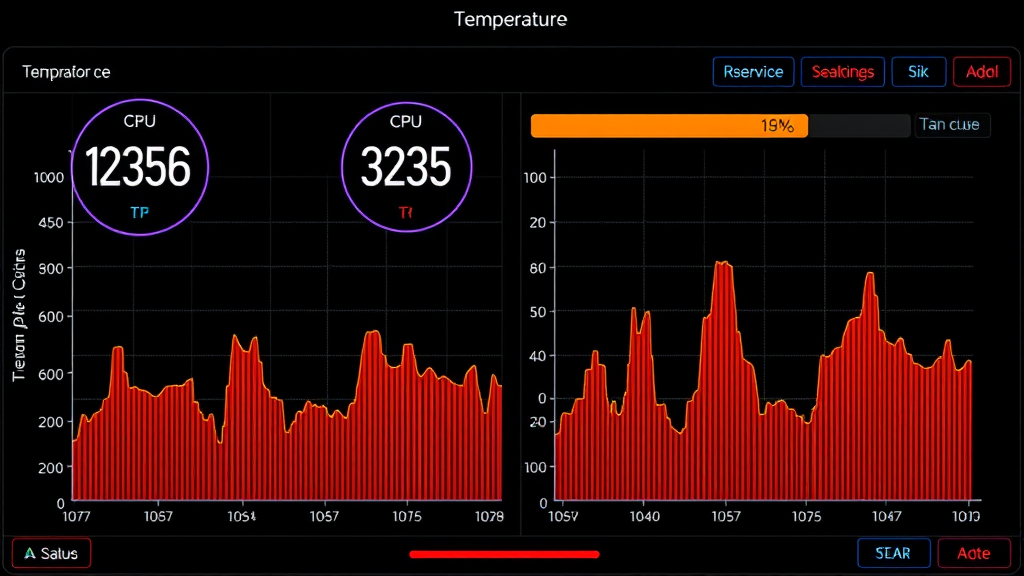
There are several reliable methods to monitor your CPU temperature, ranging from built-in system utilities to specialized third-party applications. The most accessible approach involves using your motherboard’s BIOS or UEFI firmware, which provides real-time temperature readings directly from hardware sensors. To access this information, restart your computer and enter the BIOS setup during boot by pressing the designated key (usually F2, F12, or Delete).
Windows users can also utilize built-in PowerShell commands or Windows Management Instrumentation (WMI) queries to retrieve temperature data. However, these methods often provide limited information compared to dedicated monitoring software. For Mac users, similar to how to right click on a Mac, accessing system information requires specific commands or third-party applications since Apple restricts direct hardware sensor access in macOS.
Command-line tools offer another avenue for temperature monitoring, particularly useful for system administrators and advanced users who prefer scriptable solutions. Linux distributions typically include sensors utilities that can display comprehensive thermal information from various system components, while Windows users can leverage tools like Core Temp’s command-line interface for automated monitoring and logging purposes.
Software Solutions for Temperature Monitoring
Dedicated temperature monitoring software provides the most comprehensive and user-friendly approach to tracking CPU thermals. Popular applications like HWiNFO64, Core Temp, and Open Hardware Monitor offer real-time temperature displays, historical logging, and customizable alerts when temperatures exceed safe thresholds. These programs read data directly from CPU thermal sensors and present it in easy-to-understand formats.
HWiNFO64 stands out as one of the most comprehensive system monitoring tools available, providing detailed information about all system components including individual CPU core temperatures, package temperatures, and thermal throttling status. The software supports virtually all modern processors and motherboards, making it an excellent choice for users seeking detailed thermal analysis and system diagnostics.
For users who prefer lightweight solutions, Core Temp offers a focused approach specifically designed for CPU temperature monitoring. This application displays real-time temperatures for each processor core, maintains temperature logs, and includes features like system tray integration and customizable temperature alarms. The software’s minimal resource usage makes it ideal for continuous background monitoring without impacting system performance.
Gaming-focused applications like MSI Afterburner and ASUS AI Suite also include CPU temperature monitoring capabilities alongside GPU and system-wide thermal management features. These tools often integrate with RGB lighting systems and provide comprehensive overclocking utilities, making them popular choices among enthusiasts who want unified control over their system’s performance and aesthetics.
Hardware-Based Monitoring Tools
While software solutions dominate the temperature monitoring landscape, hardware-based tools offer unique advantages for specific use cases. Thermal monitoring devices like infrared thermometers and thermal imaging cameras provide external temperature measurements that can validate software readings and identify hot spots on processor surfaces and heat sinks.
Some advanced motherboards include dedicated temperature monitoring displays or LED indicators that show real-time thermal information without requiring software installation. These hardware solutions prove particularly valuable during system troubleshooting, overclocking sessions, or when the operating system is unstable due to thermal issues.
Professional-grade thermal monitoring equipment, while expensive, offers unparalleled accuracy for critical applications or research purposes. These tools can measure surface temperatures with precision typically exceeding ±1°C and provide thermal mapping capabilities that reveal heat distribution patterns across processor packages and cooling solutions.
Interpreting Temperature Readings
Understanding temperature readings requires knowledge of different measurement points and their significance. CPU temperature sensors typically report package temperature, which represents the hottest point on the processor die, and individual core temperatures that may vary slightly due to workload distribution and silicon variations. The package temperature usually serves as the primary reference for thermal management decisions.
Temperature spikes during intensive tasks are normal and expected behavior, provided they remain within manufacturer specifications. However, sustained high temperatures, rapid temperature fluctuations, or temperatures that continue rising without stabilization indicate potential cooling inadequacies or hardware problems requiring immediate attention.
According to Intel’s official documentation, most modern processors implement thermal protection mechanisms that prevent damage through automatic throttling and emergency shutdown procedures. These safeguards activate when temperatures approach critical thresholds, typically 10-15°C below the maximum junction temperature specification.
Cooling Solutions and Optimization
Effective CPU cooling involves multiple components working together to transfer heat away from the processor. The thermal interface material (TIM) between the CPU and heat sink plays a crucial role in heat transfer efficiency, and degraded thermal paste can significantly impact cooling performance. Regular maintenance, including thermal paste replacement every 2-3 years, helps maintain optimal thermal conductivity.
Air cooling solutions range from basic stock coolers to high-performance tower coolers with multiple heat pipes and large radiator surfaces. These systems rely on convective heat transfer and require adequate case airflow to function effectively. Upgrading case fans, optimizing fan curves, and ensuring proper cable management can significantly improve air cooling performance without requiring major hardware changes.
Liquid cooling systems offer superior heat dissipation capacity for high-performance applications and overclocked systems. All-in-one (AIO) liquid coolers provide excellent cooling performance with minimal installation complexity, while custom liquid cooling loops offer maximum thermal performance for extreme overclocking and enthusiast builds. When implementing cooling upgrades, similar to the process described in how to install guides, proper planning and installation procedures are essential for optimal results.
Troubleshooting Overheating Issues
When CPU temperatures consistently exceed safe operating ranges, systematic troubleshooting helps identify and resolve the underlying causes. Common culprits include dust accumulation in heat sinks and fans, degraded thermal paste, inadequate case ventilation, or failing cooling components. Beginning with visual inspection and cleaning procedures often resolves many thermal issues without requiring component replacement.
Dust accumulation represents one of the most frequent causes of thermal problems, as it acts as an insulator that impedes heat transfer from heat sinks and reduces fan efficiency. Regular cleaning using compressed air or specialized computer cleaning tools helps maintain optimal cooling performance. Pay particular attention to heat sink fins, fan blades, and intake filters where dust typically accumulates most heavily.
Software-related thermal issues can also contribute to overheating problems. Malware infections, background processes consuming excessive CPU resources, or incorrect power management settings can cause sustained high processor utilization and elevated temperatures. Similar to undoing changes made to your computer, identifying and reversing problematic software modifications often resolves thermal issues quickly.
For systems experiencing persistent thermal problems, stress testing using applications like Prime95 or AIDA64 helps identify whether the issue stems from inadequate cooling capacity or defective hardware. These tools generate maximum thermal loads that reveal cooling system limitations and help validate the effectiveness of thermal solutions. The AMD documentation provides specific guidelines for interpreting stress test temperatures on their processors.
Frequently Asked Questions
What is considered a safe CPU temperature range?
Most modern CPUs operate safely between 35-50°C at idle and up to 80-85°C under full load. Temperatures consistently above 85°C may trigger thermal throttling, while sustained temperatures above 90°C can potentially cause long-term damage. Always consult your processor’s specifications for exact thermal limits, as these vary between different CPU models and manufacturers.
How often should I check my CPU temperature?
For regular users, checking CPU temperature monthly or when experiencing performance issues is sufficient. However, if you’re overclocking, running intensive applications, or notice system instability, daily monitoring is recommended. Automated monitoring software can continuously track temperatures and alert you to dangerous thermal conditions without manual intervention.
Can high CPU temperatures cause permanent damage?
Yes, prolonged exposure to excessive temperatures can cause permanent damage to CPU silicon, leading to reduced performance, system instability, or complete processor failure. Modern CPUs include thermal protection mechanisms that throttle performance or shut down the system before damage occurs, but these safeguards aren’t foolproof, especially if cooling systems fail completely.
Why do CPU temperatures vary between different cores?
Temperature variations between CPU cores are normal due to differences in workload distribution, manufacturing tolerances, and physical location within the processor package. Cores handling more intensive tasks generate more heat, while cores in different physical positions may have slightly different thermal characteristics. Variations of 5-10°C between cores are typically normal.
What should I do if my CPU temperature suddenly spikes?
Sudden temperature spikes usually indicate cooling system problems such as fan failure, thermal paste degradation, or dust accumulation. Immediately check that all cooling fans are functioning properly, clean dust from heat sinks and fans, and consider reapplying thermal paste if the problem persists. Monitor system performance and consider reducing workload intensity until the issue is resolved.
Is it normal for laptop CPU temperatures to be higher than desktop CPUs?
Yes, laptop CPUs typically operate at higher temperatures due to space constraints and limited cooling capacity. Laptop processors are often designed to handle higher thermal thresholds, with some models safely operating up to 95-100°C under load. However, sustained high temperatures can still impact performance and longevity, so maintaining clean cooling systems remains important.
How does ambient room temperature affect CPU temperatures?
Ambient room temperature directly impacts CPU cooling efficiency, with higher room temperatures resulting in elevated processor temperatures. For every 1°C increase in ambient temperature, CPU temperatures typically rise by 0.5-1°C. Maintaining reasonable room temperatures (20-25°C) helps optimize cooling performance and prevents thermal issues, especially in high-performance systems or during summer months.

Related Posts

How Long to Boil Lobster Tails: Cooking Guide

How Long to Fly from New York to London? Travel Times
