

Master Copy and Paste on MacBook: Boost Your Productivity
MacBook users often struggle with the fundamental task of copying and pasting content, especially when transitioning from Windows systems. Understanding how to copy and paste on MacBook efficiently is crucial for maximizing productivity and streamlining your workflow. Whether you’re a student writing research papers, a professional managing documents, or a creative working with multimedia content, mastering these essential keyboard shortcuts and techniques will save you countless hours.
The copy and paste functionality on MacBook differs slightly from other operating systems, utilizing the Command key instead of Ctrl. This comprehensive guide will walk you through every aspect of copying and pasting on your MacBook, from basic keyboard shortcuts to advanced techniques that will transform how you work with digital content. By the end of this article, you’ll have complete mastery over these fundamental operations.
Basic Copy and Paste Shortcuts
The foundation of efficient MacBook usage lies in mastering the basic keyboard shortcuts for copying and pasting. Unlike Windows computers that use the Ctrl key, MacBooks utilize the Command key (⌘) for these operations. The primary shortcuts you need to memorize are Command+C for copy, Command+V for paste, and Command+X for cut.
To copy text or content, first select the desired material by clicking and dragging your cursor over it. Once highlighted, press Command+C to copy the selection to your clipboard. The copied content remains in memory until you copy something else or restart your computer. To paste the copied content, position your cursor where you want the text to appear and press Command+V.
The cut operation, performed with Command+X, removes the selected content from its original location and places it on the clipboard. This is particularly useful when moving text from one location to another within the same document or between different applications. After cutting, use Command+V to paste the content in its new location.
Using Right-Click for Copy and Paste
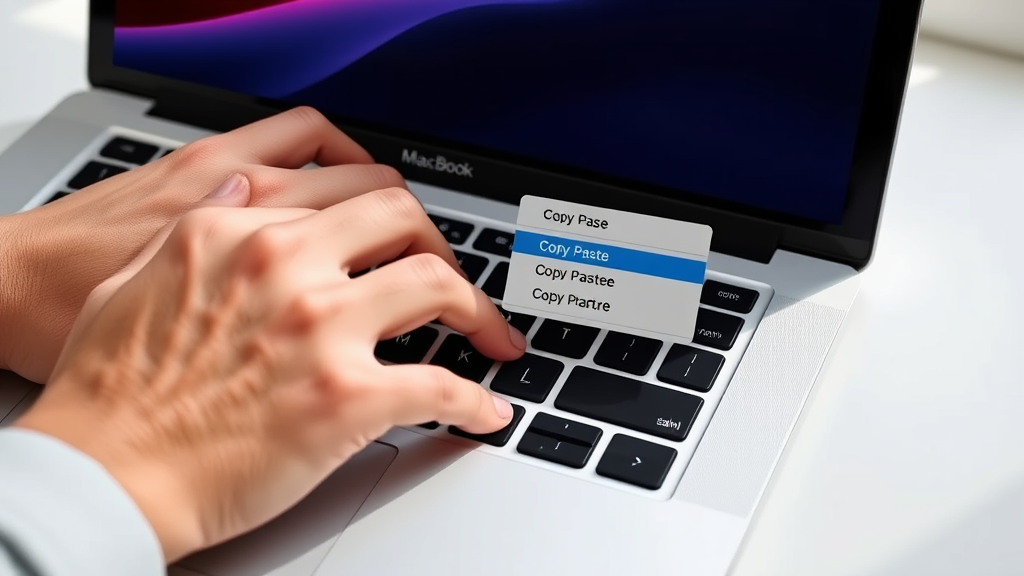
For users who prefer mouse-based interactions, the right-click method provides an intuitive alternative to keyboard shortcuts. After selecting your desired content, perform a right-click to access the contextual menu. If you’re unsure about right-clicking techniques, this method works with either a two-finger tap on the trackpad or by holding the Control key while clicking.
The contextual menu displays various options including Copy, Cut, and Paste. Simply click on your desired action to execute it. This method is particularly helpful when working with images, files in Finder, or when you need to access additional options like “Copy Link” in web browsers or “Copy Style” in text editors.
Some applications provide enhanced right-click functionality with specialized copy and paste options. For example, in image editing software, you might see options like “Copy Layer” or “Paste in Place,” while document editors may offer “Paste and Match Style” to maintain consistent formatting.
Menu Bar Copy and Paste Options
Every MacBook application includes copy and paste functions in the Edit menu located in the menu bar at the top of the screen. This method is particularly useful when keyboard shortcuts aren’t working or when you need to access specialized paste options. Click on “Edit” in the menu bar to reveal a dropdown menu containing Copy, Cut, and Paste options.
The menu bar method also provides access to advanced features like “Paste and Match Style” (Command+Option+Shift+V), which pastes content while adopting the formatting of the destination document. This is invaluable when working with documents that require consistent styling, similar to techniques used when learning document formatting.
Some applications extend the Edit menu with application-specific options such as “Paste Special” in spreadsheet applications or “Paste as Plain Text” in text editors. These specialized functions give you granular control over how content is transferred between applications while preserving or modifying formatting as needed.
Advanced Copy and Paste Techniques
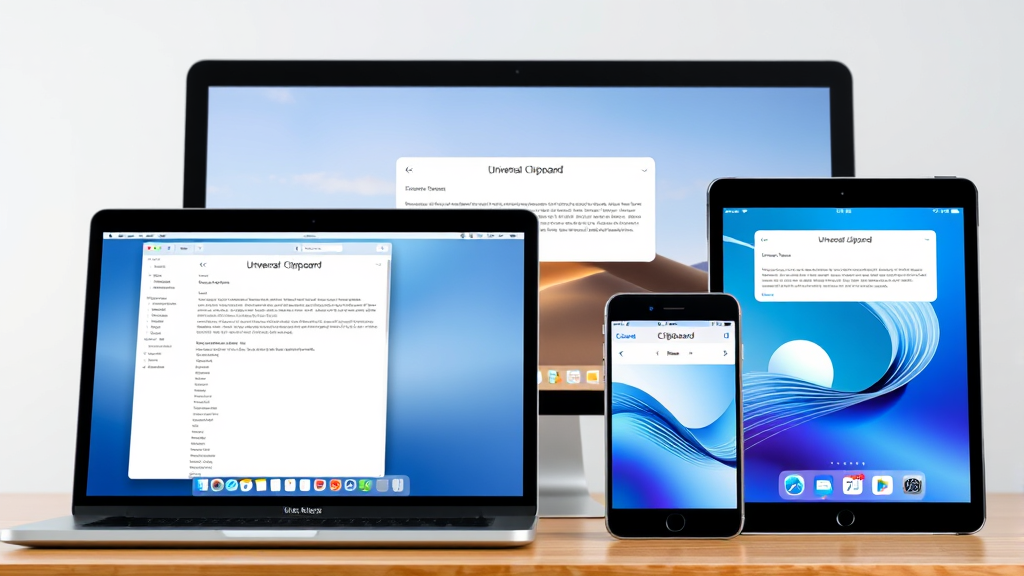
Beyond basic copying and pasting, MacBook offers several advanced techniques that can significantly boost your productivity. Universal Clipboard allows you to copy content on your MacBook and paste it on other Apple devices like iPad or iPhone, provided they’re signed in to the same Apple ID and have Bluetooth and Wi-Fi enabled.
Multiple selection copying is another powerful feature available in many applications. Hold the Command key while clicking to select multiple non-contiguous items, then copy them all simultaneously. This technique works in Finder for files, in text editors for multiple text selections, and in various creative applications for design elements.
Format-specific pasting options provide precise control over how content appears in the destination. Command+Option+Shift+V pastes content while matching the destination’s style, while some applications offer additional options like pasting as rich text, plain text, or maintaining source formatting. These techniques are particularly useful when working with complex documents or when transferring content between different applications.
Clipboard Management and History
While macOS includes a basic clipboard that holds one item at a time, third-party clipboard managers can store multiple copied items and provide clipboard history functionality. Popular options include Paste, CopyClip, and ClipMenu, which allow you to access previously copied content and manage multiple clipboard items simultaneously.
The built-in clipboard viewer can be accessed through some applications by selecting Edit > Show Clipboard, displaying the current clipboard contents. This feature helps verify what’s currently copied and troubleshoot issues when paste operations don’t work as expected.
Professional users often benefit from clipboard managers that offer features like cloud synchronization, text transformation, and snippet management. These tools can store frequently used text snippets, email signatures, or code blocks, making them instantly accessible across all your projects and applications.
Troubleshooting Common Issues
When copy and paste functions stop working properly, several troubleshooting steps can resolve the issue. First, try quitting and relaunching the problematic application, as software glitches often cause temporary clipboard malfunctions. If the issue persists across multiple applications, restart your MacBook to reset system processes.
Permission issues can sometimes prevent copying and pasting in certain applications or file locations. Check that you have appropriate read and write permissions for the files and folders you’re working with. Applications running in sandboxed mode may also have limitations on clipboard access that could affect functionality.
Third-party applications or system modifications can interfere with clipboard operations. If you’ve recently installed new software or system tweaks, try disabling them temporarily to identify potential conflicts. Additionally, some security software may monitor or restrict clipboard access, requiring configuration adjustments to restore full functionality.
Productivity Tips and Best Practices
Maximizing your copy and paste efficiency involves developing good habits and utilizing advanced features strategically. Create a mental workflow that incorporates keyboard shortcuts naturally, reducing reliance on mouse interactions. Practice using Command+C, Command+V, and Command+X until they become second nature, similar to how you might optimize other productivity tasks like spreadsheet management.
When working with large documents or complex projects, use copy and paste strategically to maintain consistency. Copy formatting styles, template sections, or frequently used content to ensure uniformity across your work. This approach is particularly valuable in professional environments where brand consistency and document standards are important.
Develop awareness of application-specific copy and paste features that can enhance your workflow. Many professional applications offer specialized clipboard functions tailored to their specific use cases, such as copying layer styles in design software or copying formulas in spreadsheets. Learning these application-specific features can dramatically improve your efficiency in specialized tasks.
Consider integrating copy and paste workflows with other productivity features on your MacBook. For instance, combine clipboard operations with device management when working across multiple Apple devices, or incorporate them into email workflows when you need to manage communications efficiently.
Frequently Asked Questions
Why isn’t Command+V working to paste content on my MacBook?
Several factors can cause paste functions to fail. First, ensure you’ve actually copied content to the clipboard using Command+C. Check if the destination application supports the type of content you’re trying to paste – some applications can’t accept certain file formats or rich text. Try pasting into a different application like TextEdit to test if the clipboard contains valid content. If problems persist, restart the application or your MacBook to reset clipboard processes.
How can I copy and paste between my MacBook and iPhone or iPad?
Universal Clipboard enables seamless copying and pasting between Apple devices. Ensure all devices are signed in to the same Apple ID, have Bluetooth and Wi-Fi enabled, and are within close proximity. Copy content on one device using standard methods, then paste on another device within a few minutes. This feature works with text, images, photos, and videos across most Apple applications and many third-party apps.
What’s the difference between Command+V and Command+Option+Shift+V?
Command+V performs a standard paste operation, maintaining the original formatting of the copied content. Command+Option+Shift+V pastes content while matching the style of the destination document, effectively removing source formatting. This “Paste and Match Style” function is invaluable when copying content from web pages or differently formatted documents into your work, ensuring consistent appearance throughout your document.
Can I copy multiple items to the clipboard simultaneously?
The built-in macOS clipboard only holds one item at a time – copying new content replaces the previous clipboard contents. However, you can select multiple items simultaneously using Command+click in many applications, then copy them all at once. For true multiple clipboard functionality, consider third-party clipboard managers like Paste, CopyClip, or Alfred, which can store and manage multiple copied items with history and search capabilities.
How do I copy files and folders in Finder using keyboard shortcuts?
In Finder, select files or folders and use Command+C to copy them to the clipboard. Navigate to the destination folder and press Command+V to paste copies of the selected items. Use Command+Option+V to move files instead of copying them (equivalent to cut and paste for files). You can also duplicate files in the same location using Command+D, which creates copies with “copy” appended to the filename.
Why does pasted text sometimes look different from what I copied?
Text formatting differences occur when copying content between applications with different default styles or when copying from web pages with complex formatting. The source formatting may include fonts, colors, sizes, or styles that don’t match your destination document. Use Command+Option+Shift+V to paste while matching the destination style, or paste into a plain text editor first to strip formatting, then copy and paste the plain text to your final destination.
Is there a way to see what’s currently in my clipboard?
Some applications provide clipboard viewers through Edit > Show Clipboard in the menu bar, though this feature isn’t available in all apps. The clipboard viewer displays the current contents, helping you verify what’s copied and troubleshoot paste issues. Third-party clipboard managers offer more comprehensive clipboard viewing and management features, including history, previews, and search functionality for previously copied items.

Related Posts

How Long to Boil Lobster Tails: Cooking Guide

How Long to Fly from New York to London? Travel Times
