

Master Excel: Keep Key Rows in Sight by Freezing Them
Working with large Excel spreadsheets can be challenging when you need to keep track of important header rows or reference data while scrolling through hundreds of rows. Excel’s freeze panes feature is an invaluable tool that allows you to keep specific rows visible at all times, dramatically improving your productivity and data analysis capabilities.
Whether you’re managing financial reports, tracking inventory, or analyzing survey data, learning how to freeze a row in Excel will transform how you navigate and work with your spreadsheets. This comprehensive guide will walk you through every aspect of freezing rows, from basic techniques to advanced applications.
Understanding Excel’s Freeze Panes Feature
Excel’s freeze panes functionality is designed to solve one of the most common challenges in spreadsheet management: maintaining visibility of important reference information while navigating through large datasets. When you freeze rows, they remain visible at the top of your screen regardless of how far down you scroll, creating a permanent reference point for your data analysis.
The freeze panes feature works by creating a split in your worksheet view. Everything above the frozen area remains stationary, while the content below can be scrolled normally. This creates a more efficient workflow, especially when working with data that spans dozens or hundreds of rows. The Microsoft Office support documentation provides detailed technical specifications for this feature across different Excel versions.
Understanding when and why to use freeze panes is crucial for maximizing your Excel efficiency. Common scenarios include keeping column headers visible while reviewing data, maintaining key performance indicators at the top of financial reports, or preserving important reference information when analyzing survey results or research data.

How to Freeze the Top Row in Excel
The most common application of row freezing is keeping the top row visible, which typically contains column headers or important labels. The process is straightforward and can be accomplished in just a few clicks using Excel’s built-in tools.
To freeze the top row in Excel, start by opening your spreadsheet and ensuring you’re working in the correct worksheet. Navigate to the “View” tab in the Excel ribbon, which contains all the display and layout options for your spreadsheet. In the “Window” group, you’ll find the “Freeze Panes” dropdown menu.
Click on “Freeze Panes” and select “Freeze Top Row” from the dropdown options. Excel will immediately apply the freeze, and you’ll notice a slightly thicker horizontal line appearing below the first row, indicating that the freeze is active. This visual cue helps you identify which rows are frozen at any time.
Once the top row is frozen, you can scroll down through your data while keeping the header row constantly visible. This is particularly useful when working with large datasets where you need to reference column names or categories while entering or analyzing data in lower rows. The frozen row will remain in place even if you scroll to row 1000 or beyond.
To unfreeze the row, simply return to the “View” tab, click on “Freeze Panes,” and select “Unfreeze Panes.” This will remove all freezing from your worksheet and return it to normal scrolling behavior. Just like learning how to double space in word for document formatting, mastering these basic Excel functions significantly improves your productivity.
Freezing Multiple Rows and Advanced Techniques
While freezing the top row covers many basic needs, there are situations where you need to freeze multiple rows or specific row ranges. This advanced technique requires a slightly different approach but offers much greater flexibility in customizing your worksheet view.
To freeze multiple rows, you’ll need to select the row immediately below the rows you want to freeze. For example, if you want to freeze the first three rows, click on row 4 to select it entirely. Then navigate to the “View” tab and click “Freeze Panes” followed by “Freeze Panes” (not “Freeze Top Row”). Excel will freeze all rows above your selection.
This method works because Excel interprets your selection as the boundary between frozen and scrollable content. Everything above your selected row becomes frozen, while everything from your selected row downward remains scrollable. The Excel University provides comprehensive tutorials on advanced freezing techniques for complex spreadsheet layouts.
Advanced users can also create custom freeze configurations by selecting specific cells rather than entire rows. By clicking on a particular cell and then applying freeze panes, you can create both horizontal and vertical freeze lines simultaneously. This technique is especially useful for complex financial models or data analysis sheets where you need multiple reference points visible at all times.
When working with filtered data or pivot tables, the freezing behavior may interact differently with your content. It’s important to apply freezes before setting up complex filters or pivot configurations to ensure the frozen areas display correctly. Understanding these nuances, much like knowing how to find the range in statistical analysis, helps you work more effectively with data.
Combining Row and Column Freezing
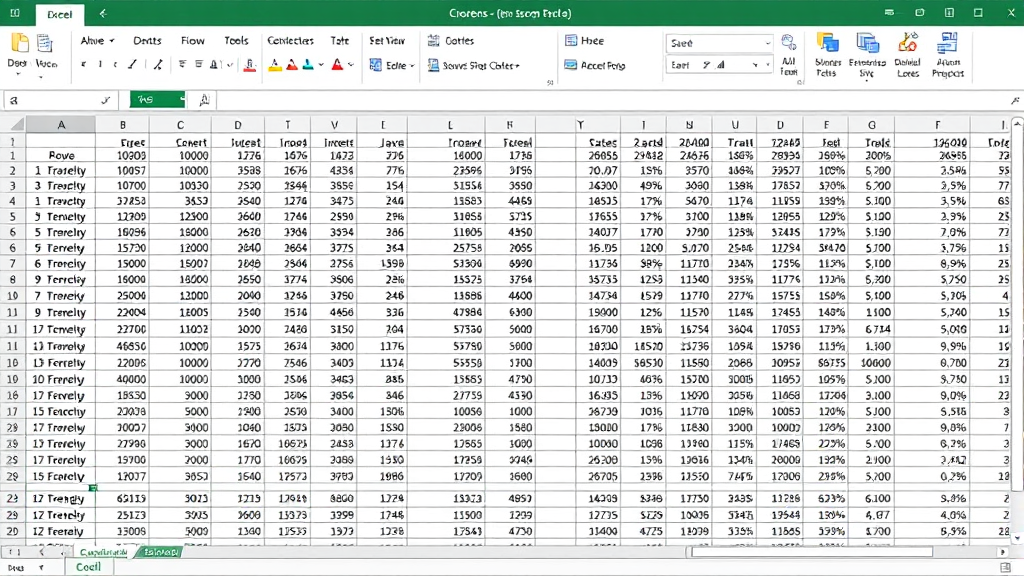
Excel’s freeze panes feature becomes even more powerful when you combine row and column freezing, creating a stable reference grid that keeps both horizontal and vertical reference information visible while you navigate through large datasets.
To freeze both rows and columns simultaneously, click on the cell that represents the intersection point where you want the freeze to occur. For example, if you want to freeze the first two rows and the first column, click on cell B3. Then access the “View” tab and select “Freeze Panes” from the dropdown menu.
This creates a four-quadrant view of your spreadsheet: the top-left quadrant remains completely static, the top-right quadrant scrolls horizontally but not vertically, the bottom-left quadrant scrolls vertically but not horizontally, and the bottom-right quadrant scrolls in both directions. This configuration is ideal for large datasets where you need constant access to both row and column headers.
The combined freezing technique is particularly valuable for financial analysts, researchers, and data managers who work with extensive spreadsheets containing multiple variables and time periods. By keeping key identifiers and time stamps visible, you can navigate through complex data without losing context or making data entry errors.
Managing these advanced freeze configurations requires attention to detail and understanding of your data structure. The Harvard Business School frequently uses these Excel techniques in their data analysis courses, emphasizing the importance of proper spreadsheet navigation for business intelligence applications.
Troubleshooting Common Freezing Issues
While freezing rows in Excel is generally straightforward, users sometimes encounter issues that prevent the feature from working as expected. Understanding common problems and their solutions can save significant time and frustration during your spreadsheet work.
One frequent issue occurs when the freeze panes option appears grayed out or unavailable. This typically happens when you’re in editing mode within a cell. To resolve this, press Enter or Escape to exit cell editing mode, then try accessing the freeze panes feature again. Additionally, some Excel views, such as Page Layout or Page Break Preview, don’t support freeze panes functionality.
Another common problem involves frozen panes not displaying correctly after saving and reopening a file. This can occur due to display scaling issues or Excel version compatibility problems. Try adjusting your display zoom level or switching to Normal view to resolve display inconsistencies.
If frozen rows seem to disappear when switching between worksheets, check whether each worksheet has its own freeze configuration. Excel applies freeze panes settings individually to each worksheet, so you may need to set up freezing separately for different tabs within your workbook.
Performance issues can arise when freezing large numbers of rows in very large spreadsheets. Excel may become sluggish when processing freeze panes with hundreds of frozen rows or when working with files containing millions of data points. In such cases, consider freezing fewer rows or optimizing your spreadsheet structure for better performance. Similar to troubleshooting issues like how to recall an email in outlook, systematic problem-solving approaches work best for Excel issues.
Best Practices for Using Freeze Panes
Implementing freeze panes effectively requires strategic thinking about your spreadsheet design and workflow requirements. Following established best practices ensures you maximize the benefits while avoiding common pitfalls that can hinder productivity.
First, consider your data structure before applying freeze panes. The most effective frozen rows contain essential reference information such as column headers, key performance indicators, or important metadata. Avoid freezing rows that contain regularly changing data or temporary information, as this can create confusion during data analysis.
When designing spreadsheets for team collaboration, establish consistent freeze pane standards across your organization. This ensures all team members can navigate shared files efficiently and reduces training time for new users. Document your freezing conventions in your style guide alongside other formatting standards.
For complex spreadsheets with multiple data sections, consider using freeze panes in combination with Excel’s split panes feature. While freeze panes keeps certain areas static, split panes allows you to view different parts of the same worksheet simultaneously. This combination provides maximum flexibility for data analysis and comparison tasks.
Regular maintenance of your freeze pane settings is important, especially in dynamic spreadsheets where data structure changes frequently. Periodically review your frozen areas to ensure they still serve their intended purpose and adjust as needed. The Massachusetts Institute of Technology recommends regular spreadsheet audits as part of good data management practices.
Finally, consider the impact of freeze panes on printing and sharing. Frozen areas may affect how your spreadsheet appears when printed or exported to other formats. Test your freeze configurations with different output methods to ensure consistent presentation across various platforms and devices. This attention to detail, similar to knowing how to right click on a mac for cross-platform compatibility, ensures professional results regardless of how others access your work.
Frequently Asked Questions
How do I freeze multiple rows at once in Excel?
To freeze multiple rows, select the row immediately below the rows you want to freeze, then go to View > Freeze Panes > Freeze Panes. For example, to freeze the first three rows, click on row 4 first. Excel will freeze all rows above your selection, keeping them visible while you scroll through the rest of your data.
Can I freeze rows in the middle of my spreadsheet instead of just the top?
Yes, you can freeze rows anywhere in your spreadsheet. Click on the row immediately below where you want the freeze to occur, then apply Freeze Panes. This creates a horizontal freeze line that keeps everything above static while allowing the content below to scroll normally. This technique is useful for keeping section headers visible within large datasets.
What’s the difference between Freeze Panes and Split Panes in Excel?
Freeze Panes keeps selected rows or columns completely static and visible while scrolling, while Split Panes divides your worksheet into separate scrollable sections. Freeze Panes is better for keeping reference information visible, while Split Panes allows you to view and compare different parts of the same worksheet simultaneously. You can use both features together for maximum flexibility.
Why can’t I see the Freeze Panes option in my Excel ribbon?
The Freeze Panes option may be unavailable if you’re in cell editing mode (typing in a cell), using Page Layout or Page Break Preview view, or working with certain Excel versions. Exit editing mode by pressing Enter or Escape, switch to Normal view, and ensure you’re using a compatible Excel version. The feature is located in the View tab under the Window group.
How do I unfreeze rows in Excel?
To unfreeze rows, go to the View tab in the ribbon, click on Freeze Panes, and select “Unfreeze Panes” from the dropdown menu. This removes all freezing from your current worksheet and returns it to normal scrolling behavior. You can also achieve this by pressing Alt + W + F + F as a keyboard shortcut.
Will frozen rows affect printing in Excel?
Frozen rows in Excel are primarily a display feature and don’t automatically repeat on printed pages. If you want rows to repeat on each printed page, you need to use the “Print Titles” feature instead. Go to Page Layout > Print Titles and specify which rows should repeat at the top of each printed page. This is separate from the Freeze Panes display feature.
Can I freeze rows and columns at the same time?
Yes, you can freeze both rows and columns simultaneously by selecting the cell at the intersection where you want both freezes to occur. For example, clicking cell B3 and applying Freeze Panes will freeze the first row and first column. This creates a four-quadrant view where the top-left section remains completely static, while other sections scroll independently in different directions.

Related Posts

How Long to Boil Lobster Tails: Cooking Guide

How Long to Fly from New York to London? Travel Times
