

Merge Excel Cells? Expert Tips Inside!
How to Merge 2 Cells in Excel: Expert Tips Inside!
Merging cells in Excel is one of the most practical formatting techniques for creating professional-looking spreadsheets. Whether you’re building a report, organizing data, or creating a dashboard, knowing how to merge cells effectively can transform your worksheet from cluttered to polished. This comprehensive guide walks you through every method to merge cells, troubleshoot common issues, and apply best practices that Excel professionals use daily.
Cell merging combines two or more adjacent cells into a single larger cell, perfect for headers, titles, and organized data presentation. While it seems straightforward, understanding the nuances—from data preservation to formula complications—ensures you merge cells like an expert. Let’s dive into the techniques that will elevate your Excel skills immediately.

Understanding Cell Merging Basics
Before you merge 2 cells in Excel, it’s essential to understand what happens during the merge process. When you merge cells, Excel combines them into one larger cell that spans the original rows and columns. The merged cell retains the content from the top-left cell only—any data in other cells being merged is automatically deleted unless you handle it properly first.
Excel offers several merge options beyond simple merging. You can merge cells and center content, merge cells without centering, or unmerge previously merged cells. Each option serves different formatting purposes, and choosing the right one depends on your spreadsheet’s design goals. Understanding these distinctions prevents data loss and formatting mishaps.
The merge functionality exists across all Excel versions, though the interface may vary slightly between Excel for Windows, Mac, and online versions. The core process remains consistent: select your cells, access the merge command, and confirm. However, advanced users often employ keyboard shortcuts and formatting codes to streamline the process.
Step-by-Step Guide: Merge 2 Cells
Method 1: Using the Home Tab (Most Common)
- Open your Excel spreadsheet and locate the two cells you want to merge
- Click on the first cell, then hold Shift and click the second cell to select both
- Navigate to the Home tab in the ribbon menu at the top
- Look for the Merge & Center button in the Alignment group (typically shows a grid icon)
- Click the dropdown arrow next to Merge & Center to see additional options
- Select Merge Cells if you don’t want centering, or Merge & Center if you do
- Confirm the action when prompted about preserving cell content
This method works consistently across Windows and Mac versions of Excel. The Merge & Center button is the quickest option for horizontal merging with centered text, ideal for headers and titles. If you prefer to keep your original cell alignment, choose the plain Merge Cells option instead.
Method 2: Using the Format Cells Dialog
- Select the two cells you want to merge
- Right-click on the selection to open the context menu
- Choose Format Cells from the bottom of the menu
- Click the Alignment tab in the Format Cells dialog box
- Check the Merge Cells checkbox in the lower section
- Click OK to apply the merge
This method provides more control over alignment settings simultaneously. You can adjust horizontal and vertical alignment while merging in one dialog, making it efficient for cells requiring specific positioning.
Method 3: Keyboard Shortcut (Advanced Users)
While Excel doesn’t have a dedicated keyboard shortcut for merging, you can create custom shortcuts through the Quick Access Toolbar. Add the Merge Cells command to your Quick Access Toolbar, then assign a keyboard shortcut through File > Options > Quick Access Toolbar. This method saves time for users who merge cells frequently.
Merging Cells with the Ribbon Menu
The Ribbon Menu in Excel provides the most visual and intuitive way to merge cells. Located in the Home tab, the Merge & Center button displays a small dropdown arrow that reveals three primary options: Merge & Center, Merge Across, and Merge Cells. Each serves distinct purposes in spreadsheet formatting.
Understanding Merge Options:
- Merge & Center: Combines cells and centers text horizontally and vertically—perfect for headers
- Merge Across: Merges cells in the same row only, useful for multi-row data
- Merge Cells: Simple merge without automatic centering, preserving original alignment
- Unmerge Cells: Separates previously merged cells back to individual cells
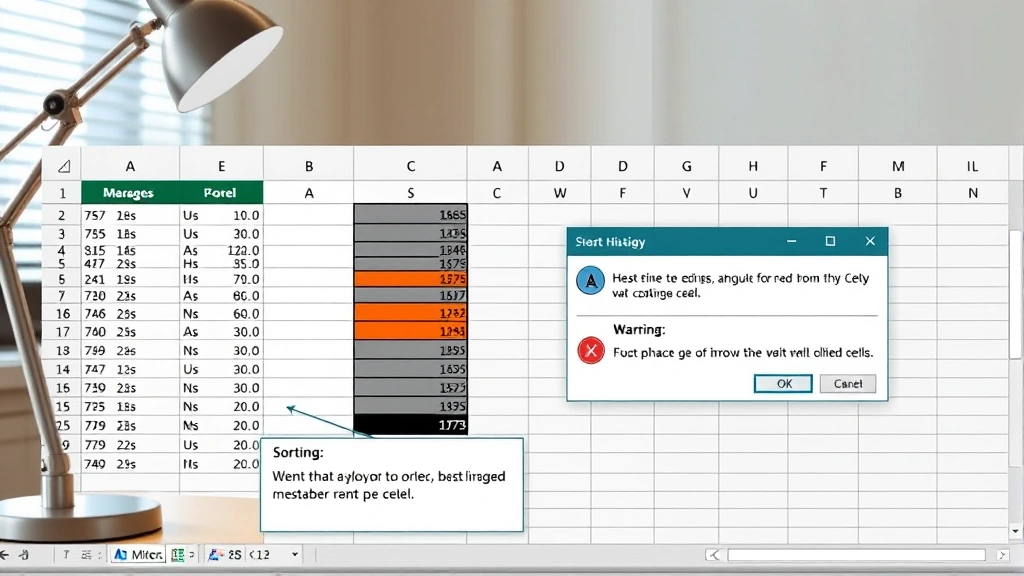
When merging cells containing data, Excel displays a warning dialog. It informs you that only the content of the top-left cell will remain after merging. This safeguard prevents accidental data loss, but you should always back up important data before merging. If you need to preserve data from multiple cells, consider using the combine cells in Excel method with formulas instead.
For users working with frozen rows in Excel, merging cells in frozen sections requires special attention. Always merge cells before freezing to avoid alignment issues. If you’ve already frozen rows, unfreeze them first, merge your cells, then refreeze.
Advanced Merging Techniques
Merging Multiple Rows and Columns
The same process applies when merging more than two cells. Select all cells you want to combine—whether arranged in a 2×2 grid, a 3×1 row, or any rectangular configuration—then apply the merge command. Excel requires that selected cells form a continuous rectangular range; you cannot merge non-adjacent cells.
Conditional Merging with Formulas
Advanced users sometimes need to merge cells conditionally based on data values. While Excel doesn’t offer built-in conditional merging, you can achieve similar visual effects using formulas that hide or display content based on conditions. Combine this with custom formatting to create dynamic-looking spreadsheets.
Merging in Tables and Structured References
If your data is part of an Excel Table (created with Ctrl+T), merging cells within the table can cause issues with structured references and formulas. It’s best to merge cells outside tables or convert your table to a regular range first. For users managing complex data structures, hiding columns in Excel often provides a cleaner alternative to merging.
Using VBA for Bulk Merging
Power users can automate merging across multiple cells using Visual Basic for Applications (VBA). A simple macro can merge cells in specific ranges, apply formatting, and save time on repetitive tasks. This approach is ideal for creating templates or processing large batches of data consistently.
Common Mistakes and Solutions
Problem: Data Loss After Merging
When you merge cells containing data in multiple cells, Excel keeps only the top-left cell’s content. If you need to preserve all data, copy content from other cells to the top-left cell before merging, or use formulas to concatenate values. The combine cells in Excel technique using the CONCATENATE or ampersand (&) operator preserves all information.
Problem: Merged Cells Breaking Formulas
Formulas referencing merged cells can behave unexpectedly. A merged cell range is treated as the top-left cell address in formulas, which can cause confusion. Always test formulas after merging and consider using named ranges to make formula references clearer.
Problem: Sorting and Filtering Issues
Merged cells interfere with Excel’s sort and filter functions. Excel may refuse to sort data containing merged cells or produce unexpected results. Solution: unmerge cells before sorting, then remerge afterward. Alternatively, use split cells in Excel for data organization instead of merging.
Problem: Printing Merged Cells Incorrectly
Merged cells sometimes print with unexpected page breaks or formatting issues. Test print preview before final printing. Adjust your print settings and ensure merged cells align with page boundaries for professional output.
Merging vs. Combining Data
It’s crucial to distinguish between merging cells and combining data. Merging is purely a formatting operation—it changes how cells appear visually. Combining refers to consolidating data from multiple cells into one, typically using formulas.
When you merge two cells with different content, one value is lost. When you combine data using formulas, all values are preserved and concatenated. For example, if cell A1 contains “John” and B1 contains “Doe,” merging them would keep only “John.” Combining them with the formula =A1&” “&B1 produces “John Doe.”
Choose merging for headers, titles, and visual organization. Choose combining when your data must be preserved and reorganized. Many professional spreadsheets use combining techniques rather than merging to maintain data integrity and formula functionality.
Best Practices for Professional Spreadsheets
Minimize Merging for Data Integrity
Professional spreadsheet designers use merging sparingly. Excessive merging creates maintenance headaches and complicates data analysis. Reserve merging for headers, titles, and clearly non-data sections. Data rows should remain unmerged to preserve sorting, filtering, and formula functionality.
Combine Merging with Consistent Formatting
When you merge cells, apply consistent formatting across your spreadsheet. Use the same font, color scheme, and alignment for all merged headers. This creates visual hierarchy and makes your spreadsheet more professional and easier to navigate.
Document Your Merging Strategy
If others will use your spreadsheet, document where and why cells are merged. Include a key or legend explaining the spreadsheet structure. This prevents confusion and makes it easier for collaborators to modify the spreadsheet correctly.
Test Before Sharing
Always test merged spreadsheets thoroughly before sharing. Verify that formulas work correctly, sorting functions properly if needed, and printing produces expected output. Test on different devices and Excel versions if your spreadsheet will be used across multiple platforms.
Consider Alternatives to Merging
Before merging, consider whether other formatting options achieve your goal better. Borders, background colors, and cell alignment often accomplish visual organization without the complications of merging. For complex layouts, consider using FixWiseHub’s comprehensive guides on advanced Excel techniques.
FAQ
Can I merge cells in Excel Online?
Yes, Excel Online supports cell merging through the Home tab ribbon. The process is identical to desktop Excel. Click the Merge & Center dropdown and select your merge option. Excel Online works seamlessly for basic merging tasks, though some advanced formatting options may be limited.
What happens to formulas when I merge cells?
Formulas in merged cells generally work, but the merged cell is treated as the top-left cell address. If your formula references a merged range, Excel uses the top-left cell’s address. Test formulas carefully after merging to ensure they calculate correctly.
How do I unmerge cells?
Select the merged cell and go to Home > Merge & Center dropdown > Unmerge Cells. The merged cell separates back into individual cells. Any content in the merged cell remains in the top-left cell; other cells become empty.
Can I merge cells that contain different data?
Yes, but only the top-left cell’s data is preserved. If you need to keep all data, copy other cell contents to the top-left cell first, or use formulas to combine data instead of merging.
Does merging cells affect sorting and filtering?
Yes, merged cells can interfere with sorting and filtering. Excel may refuse to sort data containing merged cells. Unmerge before sorting, then remerge afterward if needed. Alternatively, avoid merging data rows and merge only headers or titles.
What’s the difference between Merge & Center and Merge Cells?
Merge & Center combines cells and centers content both horizontally and vertically. Merge Cells combines cells while preserving the original text alignment. Choose based on your formatting needs.
Can I merge cells in a protected spreadsheet?
If the spreadsheet is protected, you typically cannot merge cells unless the sheet protection specifically allows it. The protection settings determine which formatting changes are permitted. Contact your spreadsheet administrator to modify protection settings if needed.

Related Posts

Superscript in Google Docs: Expert Tips

Strikethrough in Excel: Easy Steps for Beginners
