
Hide iPhone Texts? Expert Privacy Tips
How to Hide Text Messages on iPhone: Expert Privacy Tips
Your iPhone stores some of your most personal conversations. Whether you’re protecting sensitive business communications, maintaining privacy from family members, or simply securing confidential information, knowing how to hide text messages on iPhone is an essential digital privacy skill. Apple provides several built-in methods to keep your messages private, from hiding entire conversations to disabling message previews on your lock screen.
In this comprehensive guide, we’ll walk you through every available option for securing your text messages on iOS. These methods range from simple visibility toggles to advanced encryption techniques, ensuring you can choose the privacy level that best suits your needs.
Understanding iPhone Message Privacy Options
Apple’s Messages app offers multiple layers of privacy controls designed to protect your conversations from casual viewing. The key distinction is understanding the difference between hiding messages (making them invisible in your main conversation list), muting notifications (silencing alerts), and disabling previews (preventing content from appearing on your lock screen).
Each method serves a different purpose. If someone regularly uses your iPhone, archiving conversations keeps them out of immediate view. If you want notifications silenced but need access to the conversation, muting is your solution. If you’re concerned about lock screen exposure when your phone is nearby, disabling previews prevents sensitive content from being visible to anyone looking at your device.
The most comprehensive privacy approach combines multiple methods. For example, you might archive a conversation, disable its notifications, turn off message previews, and enable Face ID authentication for your Messages app. This layered approach ensures maximum protection without making the conversation completely inaccessible to you.
Before implementing any privacy measures, consider your specific situation. Are you protecting against accidental discovery, intentional snooping, or simply maintaining professional boundaries? Your answer will determine which combination of features works best for your needs. You can also explore how similar privacy principles apply to other apps—much like managing visibility in other digital tools.
How to Hide Conversations Using Archive
Archiving is the primary method for hiding text messages on iPhone. When you archive a conversation, it disappears from your main Messages list but remains fully accessible and unsearchable. This is perfect for conversations you want to keep but don’t need immediate access to.
Steps to Archive a Single Conversation:
- Open the Messages app on your iPhone
- Swipe left on the conversation you want to hide
- Tap the “Archive” button (looks like a box with an arrow)
- The conversation immediately disappears from your main list
Archived conversations don’t delete any messages—they simply move to a separate section. You can retrieve archived messages anytime by scrolling to the top of your Messages list and pulling down to reveal the “Archived” section, or by searching for the contact name.
Archiving Multiple Conversations at Once:
- Open Messages and tap “Edit” in the upper-left corner
- Select multiple conversations by tapping each one
- Tap “Archive” at the bottom right of your screen
- All selected conversations move to your archived section simultaneously
This bulk method is especially useful if you’re cleaning up your message list or want to hide several conversations at once. The archived conversations remain on your device and are still searchable through Spotlight search, so you haven’t lost any data—you’ve simply organized it differently.
One important distinction: archiving differs from deleting. When you delete a conversation, the messages are permanently removed from your device. Archiving preserves everything while just removing it from view. If you need permanent deletion, you can swipe left and select “Delete” instead, though this is irreversible unless you have an iCloud backup.
Muting Notifications Without Hiding Messages
Sometimes you don’t want to hide a conversation entirely—you just don’t want constant notifications. Muting allows conversations to remain visible in your Messages list while silencing all alerts. This is ideal for group chats, work conversations, or contacts you want to monitor without distraction.
How to Mute a Conversation:
- Open the Messages app
- Swipe left on the conversation
- Tap the “Mute” button (speaker with a slash through it)
- Choose your mute duration: “1 hour,” “8 hours,” “1 day,” or “Forever”
Muted conversations won’t produce sound or vibration notifications, and they won’t appear in your notification center. However, the conversation remains visible in your Messages list with a muted speaker icon next to it, indicating its status.
You can unmute any conversation by repeating the process and selecting “Unmute.” This flexibility makes muting perfect for temporary privacy needs without fully removing the conversation from view. Unlike archiving, muting keeps the conversation immediately accessible, which is valuable when you need quick reference to past messages.
Muting Group Conversations:
Group chats often generate excessive notifications. Muting group conversations prevents notification overload while maintaining access to the discussion. This is particularly useful for large group chats, family group texts, or work team conversations that don’t require immediate attention.
Disabling Message Previews on Lock Screen
One of the most overlooked privacy risks is message preview exposure on your lock screen. When someone looks at your iPhone while it’s locked, they can read incoming message content without opening the Messages app. Disabling previews eliminates this vulnerability.
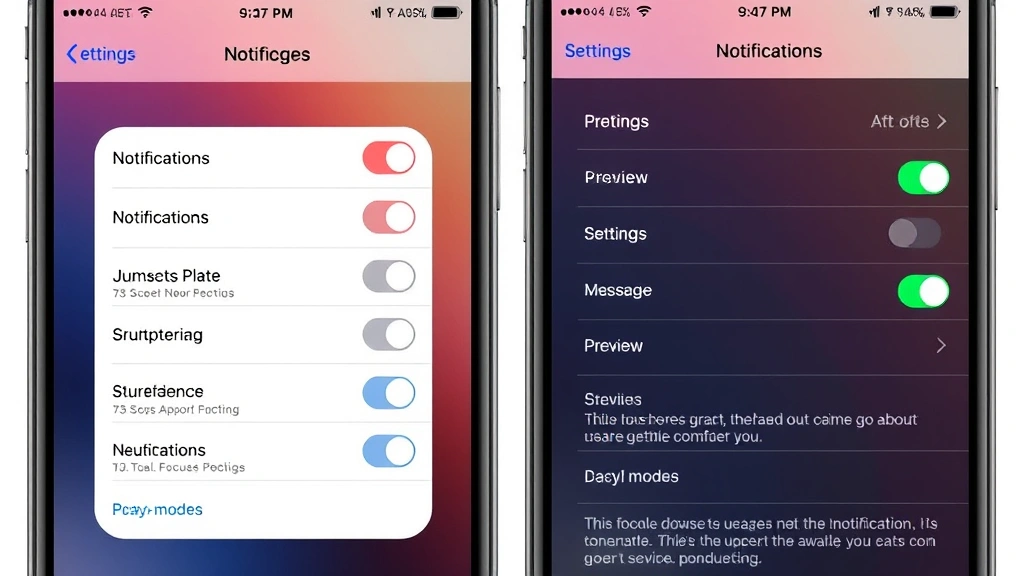
How to Turn Off Message Previews:
- Open Settings on your iPhone
- Scroll down and tap “Notifications”
- Find “Messages” in the notification list
- Tap “Messages”
- Toggle off “Show Previews” (or set it to “Never”)
With previews disabled, your lock screen will display “1 new message from Sarah” instead of the actual message content. This protects sensitive information from being visible to anyone with physical access to your phone.
You have three preview options: “Always,” “When Unlocked,” or “Never.” The “When Unlocked” setting is a good middle ground—previews appear when your iPhone is already unlocked (which implies authentication), but not on the lock screen. This balances convenience with privacy.
Per-Conversation Preview Settings:
You can customize preview settings for individual conversations. Open a specific conversation, tap the contact name at the top, scroll down to “Hide Alerts,” and adjust notification settings. This granular control lets you show previews for trusted contacts while hiding them for sensitive conversations.
Using Focus Modes for Message Privacy
iOS Focus modes are powerful tools for controlling which conversations send you notifications. By creating custom Focus modes, you can allow messages only from specific contacts while silencing everyone else. This is similar to how you might organize spreadsheet data—creating specific views for different purposes, much like hiding columns in Excel to show only relevant information.
Setting Up a Custom Focus Mode:
- Open Settings and tap “Focus”
- Tap the “+” button to create a new Focus
- Select “Custom” and name your Focus (e.g., “Private Conversations”)
- Tap “Allowed Notifications”
- Add specific contacts or apps that can notify you
- Save your Focus
Focus modes are particularly valuable for work environments, family time, or situations where you want to control message visibility strictly. You can activate different Focus modes throughout your day—a “Work” mode during business hours, a “Personal” mode for evenings, and a “Do Not Disturb” mode at night.
Messages from contacts not allowed in your active Focus won’t send notifications, and you can set custom behavior like dimming your lock screen or using a custom home screen. This creates an additional layer of message privacy by controlling when and how you receive notifications.
Filtering Unknown Senders
iPhone automatically separates messages from unknown contacts into a dedicated “Unknown Senders” section. This built-in feature protects your main Messages list from spam, phishing attempts, and unwanted communications.
How to Enable Unknown Sender Filtering:
- Open Settings and scroll to “Messages”
- Tap “Messages”
- Toggle on “Filter Unknown Senders”
With this enabled, messages from contacts not in your address book appear in a separate tab. This keeps your main conversation list clean and private, showing only communications from people you know.
The Unknown Senders filter is always recommended for privacy and security. It prevents spam messages, scam attempts, and unwanted communications from cluttering your primary message space. Messages aren’t deleted—they’re simply organized into a separate section you can review when needed.
Setting Up Password Protection
For maximum security, you can require Face ID, Touch ID, or a password to access the Messages app entirely. This prevents anyone with physical access to your unlocked iPhone from reading your conversations.
Using App-Level Security:
While iOS doesn’t provide native password protection for the Messages app specifically, you can use Screen Time to restrict access. Here’s how:
- Open Settings and tap “Screen Time”
- Tap “App Limits”
- Add “Messages” to your app limits and set the time to 0 minutes
- This requires your Screen Time passcode to access Messages
Alternatively, third-party apps in the App Store offer additional message privacy features, including encryption and password protection. Apps like Signal, Telegram, and WhatsApp provide end-to-end encryption for all messages, adding a security layer beyond Apple’s native features.
For the most sensitive conversations, consider using an encrypted messaging app. These provide military-grade encryption, meaning even Apple cannot access your message content. This is the gold standard for privacy if you’re discussing highly confidential information.
Advanced Security with iCloud Encryption
Apple’s iCloud offers end-to-end encryption for Messages in iCloud, a feature that encrypts your message backups. This ensures that even if someone accesses your iCloud account, they cannot read your messages.
Enabling Messages in iCloud:
- Open Settings and tap your Apple ID at the top
- Tap “iCloud”
- Scroll down and toggle on “Messages”
- Confirm you want to enable Messages in iCloud
Messages in iCloud syncs your conversations across all your Apple devices while keeping them encrypted. This provides backup protection without sacrificing privacy. If you lose your iPhone, your messages remain secure and recoverable on a new device.
This feature requires two-factor authentication on your Apple ID, which is another essential privacy layer. Two-factor authentication prevents unauthorized access to your account even if someone obtains your password.
Creating a Strong Recovery Strategy:
Combine iCloud encryption with regular backups to ensure you never lose important conversations while maintaining maximum security. Use your Apple ID password securely—never share it, use a strong unique password, and store it in a password manager. This approach balances accessibility with privacy, similar to how you might organize digital information while maintaining proper structural integrity in spreadsheets.
For additional security recommendations, Apple’s official iPhone support documentation provides comprehensive guidance on privacy settings. You can also consult the Electronic Frontier Foundation’s iPhone security guide for expert privacy recommendations.
FAQ
Can I completely delete text messages from my iPhone permanently?
Yes. Open Messages, find the conversation, swipe left, and tap “Delete.” This permanently removes the conversation from your device. However, if you have iCloud backups enabled, the messages may be recoverable from your backup. To permanently delete without recovery options, disable iCloud backups before deleting, or use Apple’s privacy tools to manage your iCloud data.
Will someone know if I archive their messages?
No. Archiving is completely invisible to the sender. They won’t receive any notification, and there’s no way for them to know their messages are archived. The conversation remains on your device and functions normally—it’s simply hidden from your main Messages list.
What’s the difference between muting and archiving?
Archiving hides the conversation from your main Messages list entirely, while muting keeps it visible but silences notifications. Archived conversations are still searchable and accessible, but you won’t see them unless you specifically look in your archived section. Muted conversations remain visible with a muted speaker indicator.
Can I hide messages from specific contacts?
You can archive or mute conversations with specific contacts, but you cannot selectively hide messages from one person while keeping others visible. However, you can use Focus modes to prevent notifications from specific contacts while still receiving them from others.
Is iCloud encryption safe for storing sensitive messages?
Yes. iCloud encryption with end-to-end encryption is extremely secure. Apple cannot access encrypted messages, and they’re protected by your Apple ID password and two-factor authentication. For ultra-sensitive communications, encrypted messaging apps like Signal provide additional security layers.
Can I recover archived messages?
Yes, easily. Scroll to the top of your Messages list and pull down to reveal the “Archived” section. You can also search for the contact name using Spotlight search. To restore an archived conversation to your main list, swipe left on it and tap “Unarchive.”
Will deleting a conversation delete messages on the recipient’s phone?
No. Deleting a conversation only removes messages from your device. The recipient still has the messages on their phone. Messages are stored independently on each device and cannot be remotely deleted from someone else’s iPhone.
What’s the best privacy method for sensitive business communications?
For business communications, combine multiple methods: archive the conversation, disable preview notifications, use a Focus mode to control access, and consider using an encrypted messaging app for highly sensitive information. This layered approach provides comprehensive protection.

Related Posts

Superscript in Google Docs: Expert Tips

Strikethrough in Excel: Easy Steps for Beginners
