

Add BCC in Outlook? Easy Settings Guide
How to Add BCC in Outlook: Complete Settings Guide
Blind Carbon Copy (BCC) is one of the most useful features in email management, yet many Outlook users overlook it or struggle to find it. Whether you’re managing sensitive communications, protecting recipient privacy, or organizing large group emails, understanding how to add BCC in Outlook is essential. This comprehensive guide walks you through every method available across different Outlook platforms, from desktop applications to web-based versions.
BCC allows you to send copies of emails to recipients without revealing their addresses to other recipients on the message. Unlike CC (Carbon Copy), where all recipients can see who else received the email, BCC keeps those addresses completely hidden. This feature is invaluable for maintaining confidentiality, preventing accidental reply-all incidents, and managing mailing lists professionally.
Understanding BCC vs CC in Outlook
Before diving into the technical steps, it’s important to understand the distinction between BCC and CC, as this knowledge will help you use these features appropriately in different situations. Both BCC and CC allow you to send copies of emails to additional recipients, but they operate with fundamentally different visibility levels.
When you use CC (Carbon Copy), all recipients of the email can see the addresses of everyone in the CC field. This transparency works well for collaborative projects where team members need to know who else is involved in the conversation. However, this visibility can sometimes be problematic when sending to large groups or when you want to maintain privacy.
BCC (Blind Carbon Copy) operates differently—recipients who are BCC’d receive the email, but their addresses remain completely hidden from all other recipients, including those in the TO and CC fields. This makes BCC perfect for mass communications, protecting recipient privacy, and preventing accidental reply-all situations that could send responses to unintended audiences. Understanding when to use each option is crucial for professional email management.
How to Add BCC in Outlook Desktop
The desktop version of Outlook (available for Windows and Mac) provides multiple straightforward methods to access and use the BCC field. Here’s everything you need to know about adding BCC in the Outlook desktop application.
Method 1: Enable BCC Field Visibility
The most common way to add BCC in Outlook Desktop is to make the BCC field visible in your compose window. Follow these steps:
- Open Outlook and click the “New Email” button or press Ctrl+N (Windows) or Command+N (Mac) to create a new message
- In the compose window, locate the “Options” tab in the ribbon menu at the top
- Look for the “Show Fields” section within the Options tab
- Click on “BCC” to toggle the field on—the BCC field will now appear between the CC field and the message body
- Enter the email addresses of recipients you want to BCC directly into this field
- Type your message and click Send as normal
Once you enable the BCC field this way, it will remain visible for future emails in that compose session. However, if you close and reopen Outlook, you may need to enable it again depending on your settings.
Method 2: Use the Quick Access Method
For faster access to BCC functionality, you can use keyboard shortcuts and menu options. In Outlook Desktop, simply:
- Open a new email message
- Press Ctrl+Shift+B (Windows) to instantly toggle the BCC field visibility
- If this shortcut doesn’t work on your system, go to File menu and select Options to customize your keyboard shortcuts
- Add recipients to the now-visible BCC field
This method is significantly faster once you memorize the keyboard shortcut, making it ideal for users who regularly need to send BCC emails.
Method 3: Making BCC Permanently Visible
If you frequently use BCC and want it to appear by default every time you compose an email, you can adjust your Outlook settings:
- Click “File” in the menu bar
- Select “Options” from the dropdown menu
- Choose “Mail” from the left sidebar
- Scroll down to find “Compose Messages” section
- Look for an option related to “Show BCC field” or similar wording
- Check the box to enable this option
- Click “OK” to save your changes
After completing these steps, the BCC field will automatically appear in every new email you compose, eliminating the need to manually enable it each time.

Enabling BCC in Outlook Web
Outlook Web (formerly Outlook.com and Outlook on the Web) is the browser-based version of Outlook accessible from any computer with internet access. The process for adding BCC here differs slightly from the desktop version but remains equally simple.
Steps to Show BCC in Outlook Web
- Log into your Outlook Web account at outlook.live.com or your organization’s Outlook Web Access portal
- Click “New Message” or “Compose” button to create a new email
- In the compose window, locate the “To” field with your recipient addresses
- Look for a small “CC” link or button typically displayed next to or below the To field
- Click on “CC” to expand the carbon copy options
- You’ll see “CC” and “BCC” fields appear—the BCC field is usually below CC
- Enter email addresses in the BCC field as needed
- Compose your message and click “Send”
Advanced Outlook Web Features
Outlook Web offers additional features that work seamlessly with BCC. You can add professional signatures to your emails which will be included in all messages, whether sent with BCC or not. Additionally, Outlook Web allows you to format text, insert images, and attach files—all functions that work perfectly with BCC recipients.
One advantage of Outlook Web is that the BCC field remains visible once you click it in a compose session, making it easier to work with multiple BCC recipients without repeatedly enabling the field.
BCC on Mobile Outlook Apps
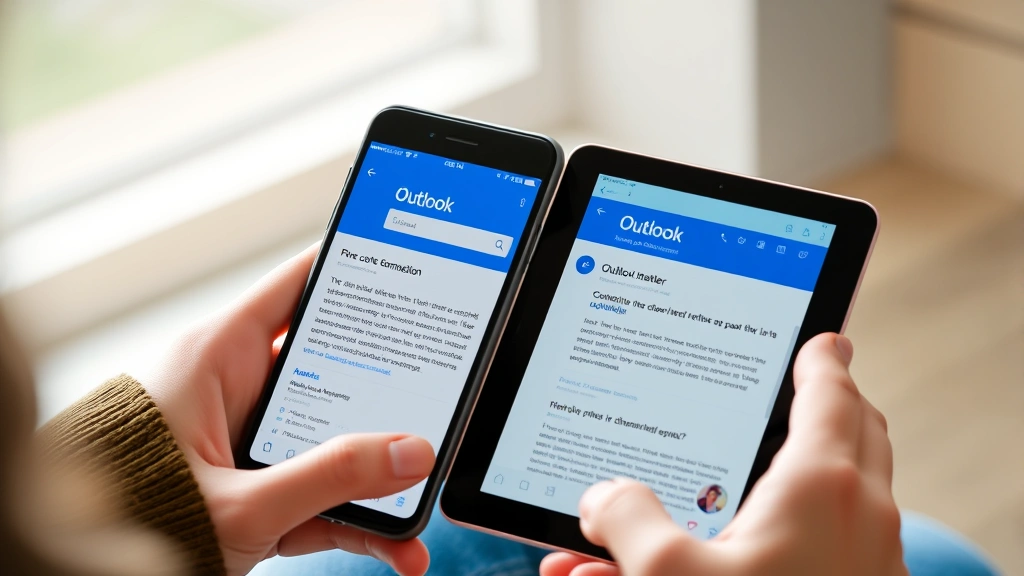
Mobile users often wonder how to access BCC functionality on their phones and tablets. The Outlook mobile app for both iOS and Android devices includes BCC support, though the interface differs from desktop and web versions.
Outlook Mobile App (iOS and Android)
- Open the Outlook mobile app on your device
- Tap the pencil/compose icon to create a new email
- Fill in the “To” field with primary recipients
- Tap on the “To” field or look for an expand arrow
- Select “Add CC” or similar option
- After adding CC recipients (if needed), look for “Add BCC” option
- Enter BCC recipient addresses
- Compose your message and tap “Send”
Mobile app interfaces can vary between updates, so if you don’t immediately see the BCC option, try tapping on the “CC” field area—this often reveals additional options including BCC.
Tips for Mobile BCC Usage
When using BCC on mobile devices, remember that:
- The BCC field may be hidden by default to save screen space—you may need to tap to expand recipient options
- Always double-check that you’ve entered addresses in the correct field before sending, as mobile keyboards can make it easy to accidentally select the wrong field
- Mobile apps sync with your desktop Outlook, so emails sent with BCC from your phone will appear in your sent folder on all devices
- Some organization-managed accounts may have restrictions on BCC usage for compliance reasons
Advanced BCC Settings and Tips
Beyond the basic functionality of adding BCC in Outlook, there are several advanced techniques and settings that power users should know about to maximize email management efficiency.
Creating Email Rules with BCC
Outlook allows you to create automated rules that can apply BCC to certain emails. This is particularly useful in organizational settings:
- Open Outlook Desktop and go to “File” → “Manage Rules & Alerts”
- Click “New Rule” to create a custom rule
- Set conditions for when the rule should apply (e.g., emails to specific distribution lists)
- Select the action to “Forward” or apply other modifications
- Configure the forwarding to include BCC recipients automatically
- Name your rule and click “OK”
These rules ensure that certain communications are automatically tracked through BCC without manual intervention each time.
BCC Best Practices
Using BCC responsibly is important for maintaining trust and professionalism:
- Transparency Consideration: While BCC is useful, be aware that using it excessively or deceptively can damage professional relationships if discovered
- Compliance Requirements: Some industries have regulations requiring transparency in email communications—always check your organization’s policies before implementing widespread BCC practices
- Large Distribution Lists: Use BCC when sending emails to large groups to prevent reply-all storms and protect recipient privacy
- Documentation: Keep records of important BCC communications for compliance and reference purposes
- Testing: Send test emails to yourself using BCC to ensure the feature is working as expected before sending to important recipients
Integration with Other Outlook Features
BCC works seamlessly with other Outlook capabilities. You can combine BCC with other email management techniques like creating folders for organizing sent messages, setting up automatic replies, and using categories for message organization. This integration allows for comprehensive email management strategies.
Troubleshooting Common BCC Issues
Even with straightforward functionality, users sometimes encounter issues when trying to use BCC in Outlook. Here are solutions to the most common problems.
BCC Field Not Appearing
If the BCC field won’t show up when you try to enable it:
- Restart Outlook: Close the application completely and reopen it—sometimes the interface needs to refresh
- Check Ribbon: Ensure you’re looking in the correct location; in newer Outlook versions, the Options tab location may differ
- Update Outlook: Make sure your Outlook installation is fully updated with the latest patches and security updates
- Disable Add-ins: Third-party add-ins can sometimes interfere with Outlook functionality—try disabling them to see if BCC becomes available
BCC Recipients Receiving Visible Addresses
If you notice that BCC recipients can see other recipient addresses, this indicates a configuration issue:
- Verify you’re using the BCC field, not the CC field
- Check that you haven’t accidentally copied addresses into multiple fields
- Review your email signature—ensure it doesn’t contain recipient information
- Contact your IT department if this occurs in an organizational account, as server-side settings may need adjustment
BCC Not Working in Specific Email Clients
Some recipients may use email clients that handle BCC differently:
- Older email clients may not fully support BCC functionality
- Some secure email systems have restrictions on BCC for security reasons
- Mobile email clients may display BCC information differently
- If you’re experiencing widespread issues, consult Microsoft’s official Outlook support for your specific version
Organizational Policy Restrictions
Enterprise organizations sometimes disable BCC functionality for compliance and security reasons:
- Contact your IT department to determine if BCC is restricted in your organization
- Request exceptions if your role requires BCC functionality
- Understand the business reasons for restrictions—they’re often implemented to prevent data leaks or ensure communication transparency
Frequently Asked Questions
Can recipients see who is BCC’d in Outlook?
No, that’s the entire purpose of BCC. Recipients who receive the email cannot see the addresses of anyone in the BCC field. Only the sender can see the complete list of all recipients (To, CC, and BCC) in their sent folder.
What’s the difference between BCC and CC in Outlook?
CC (Carbon Copy) makes recipient addresses visible to everyone on the email. BCC (Blind Carbon Copy) hides recipient addresses from all other recipients. Use CC for collaborative communication where transparency is important, and BCC for privacy-sensitive communications or mass distributions.
Is there a limit to how many people I can BCC in Outlook?
While Outlook itself doesn’t impose strict limits, email servers typically have restrictions—usually between 100-500 recipients per email depending on your email provider. For very large distributions, consider using distribution lists instead, which you can manage through Outlook settings.
Will BCC emails show in my sent folder?
Yes, emails you send with BCC recipients will appear in your sent folder, and you’ll be able to see the complete recipient list (including BCC addresses) when you view the sent message. However, BCC recipients won’t see each other’s addresses in their received copy.
Can I make BCC mandatory for certain email types?
Using Outlook rules and policies, administrators can create requirements for BCC usage in certain scenarios, such as when emails are sent to external recipients or distribution lists. This requires configuration at the organization level through Exchange Server settings.
What happens if I use BCC incorrectly?
The main risk is that recipients might feel their privacy was violated if they discover you BCC’d them without consent. Additionally, if you accidentally put someone in BCC when you meant to put them in To or CC, they’ll still receive the email but won’t know others received it. Always double-check recipient fields before sending important emails.
Does Outlook have a default setting for BCC?
By default, Outlook doesn’t automatically show the BCC field—you must manually enable it for each message or adjust settings to make it permanently visible. Some organizations configure default BCC settings through group policies, but this requires IT administration.
Can I use BCC with Outlook rules and automation?
Yes, advanced users can set up rules that automatically forward or apply BCC to certain emails based on criteria you define. This requires accessing the Rules & Alerts feature in Outlook Desktop and setting up conditions and actions appropriately.

Related Posts

Superscript in Google Docs: Expert Tips

Strikethrough in Excel: Easy Steps for Beginners
