
Boost Your Internet Speed: Expert Tips
Boost Your Internet Speed: Expert Tips for Faster Connections
Slow internet can derail productivity, frustrate streaming sessions, and make working from home feel like a nightmare. Whether you’re dealing with buffering videos, laggy video calls, or sluggish downloads, the good news is that you don’t always need to call your internet service provider or upgrade your plan. Many speed issues stem from simple problems you can fix yourself with basic troubleshooting and optimization techniques.
In this comprehensive guide, we’ll walk you through proven strategies to how to get faster internet speeds. From checking your router placement to clearing bandwidth hogs, these expert tips will help you maximize your connection and eliminate frustrating slowdowns. Let’s dive into the practical solutions that actually work.
Check Your Current Internet Speed
Before making any changes, you need a baseline measurement of your current internet speed. This helps you understand whether you actually have a problem and measure improvements after implementing solutions. Visit a free speed testing service like Speedtest.net or Fast.com to run a quick test.
Take note of your download speed, upload speed, and ping. Download speeds should match your service plan (typically 25-100 Mbps for standard home use). Upload speeds are usually lower but still important for video calls and file uploads. Ping measures latency—lower is better, ideally under 50ms for smooth browsing and gaming.
Run the test multiple times throughout the day to identify patterns. If speeds consistently fall short of your plan, you have a legitimate issue. If speeds vary wildly, the problem might be temporary congestion or interference. Check your internet service provider’s website to verify what speeds you’re actually paying for before panicking about slow performance.
Optimize Your Router Placement
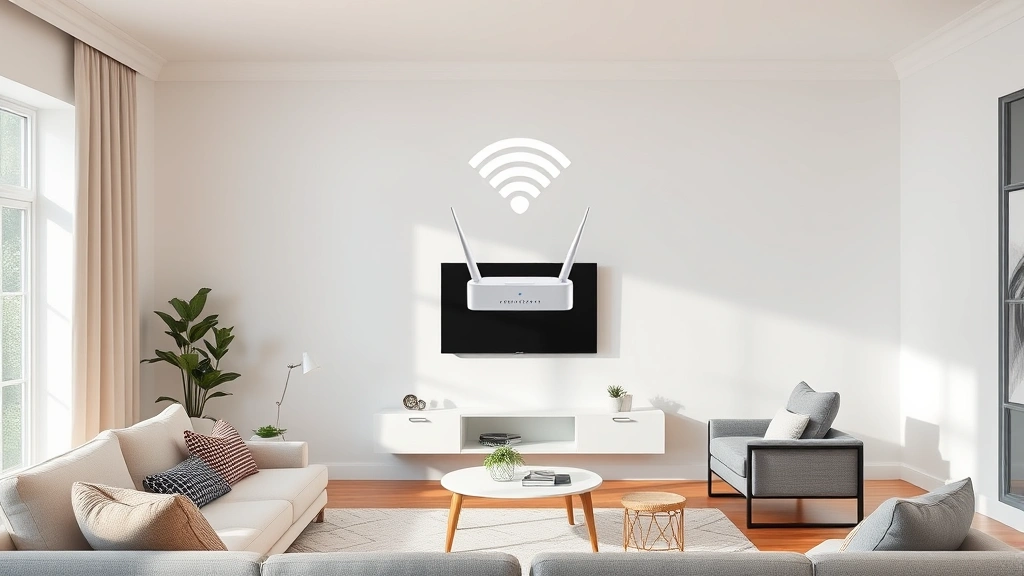
Your router’s location dramatically impacts WiFi signal strength and speed. Most people tuck their router away in a closet or corner, which severely limits coverage and speed. Instead, position your router in a central, elevated location—ideally on a shelf or wall mount rather than on the floor.
Keep your router away from obstacles like walls, metal objects, and other electronics that cause interference. Avoid placing it in enclosed spaces like cabinets, closets, or under desks. The higher the router sits, the better it broadcasts the signal throughout your home. If you live in a multi-story house, position the router on the middle floor for optimal coverage both up and down.
Distance also matters significantly. Every wall between your device and router reduces signal strength. If you spend most time in one room, consider moving your router closer to that area. For larger homes, you might eventually need a mesh WiFi system, but optimizing placement is free and often solves speed problems immediately.
Restart Your Modem and Router
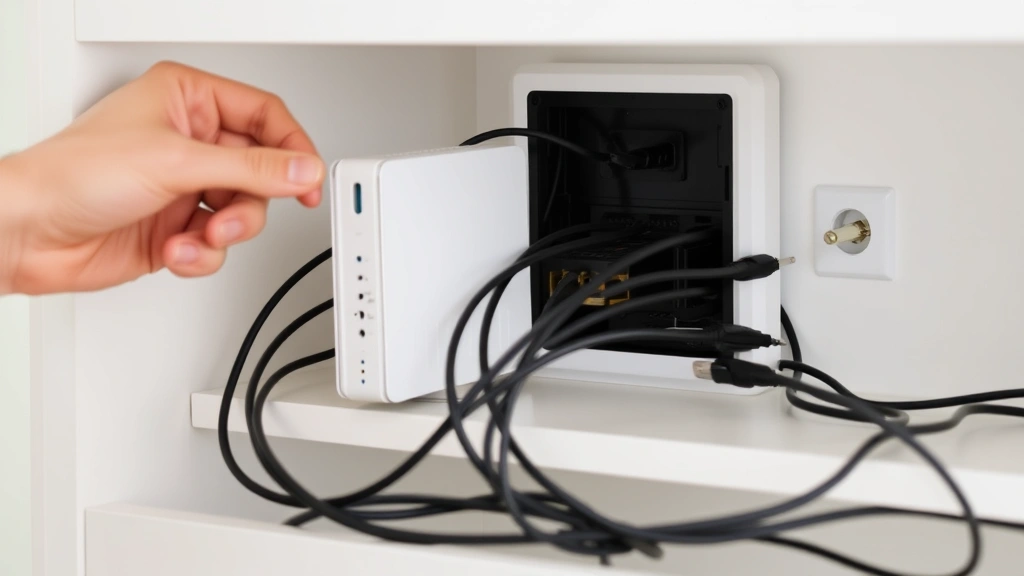
This classic troubleshooting step works surprisingly often because it clears temporary glitches and resets connections. Unplug both your modem and router completely, then wait at least 30 seconds before plugging them back in. This full power cycle allows the devices to refresh their memory and reconnect to your internet service provider’s network.
Most modems and routers have lights indicating connection status. Wait until all lights stabilize and show normal operation before testing your speed. This usually takes 2-5 minutes. If you notice slow speeds returning frequently, consider setting a monthly reminder to restart these devices. Many users find that monthly restarts prevent speed degradation from accumulating.
If restarting doesn’t help, check that all cables are firmly connected. Loose connections between your modem, router, and wall outlet can cause intermittent slow speeds. Ensure coaxial cables (the thick ones) are hand-tightened securely. Ethernet cables should click into place when properly inserted.
Update Router Firmware
Manufacturers regularly release firmware updates that improve performance, fix bugs, and enhance security. Outdated firmware can cause speed issues and leave your network vulnerable. Check your router’s admin panel to see if updates are available.
Access your router’s settings by typing its IP address (usually 192.168.1.1 or 192.168.0.1) into a web browser. Look for a firmware or system update section. Some routers check for updates automatically and notify you; others require manual checking. Enable automatic updates if your router offers this option to stay current without remembering to check.
After updating firmware, restart your router and retest your speed. Many users report noticeable improvements after updating, especially if their router hasn’t been updated in over a year. Firmware updates are completely free and take just a few minutes.
Switch to 5GHz Band
Most modern routers broadcast on both 2.4GHz and 5GHz bands. The 2.4GHz band has longer range but slower speeds and more interference from other devices. The 5GHz band is faster but has shorter range and doesn’t penetrate walls as well.
If you’re close to your router, switching to the 5GHz network can significantly boost speeds. Look for your WiFi networks in your device’s settings—you’ll typically see two network names from the same router, one labeled with 5G or 5GHz. Connect to the 5GHz network and test your speed. If you’re far from the router, stick with 2.4GHz for better coverage, but try 5GHz for devices in the same room as your router.
Some routers support band steering, which automatically connects devices to the best band. If your router has this feature, enable it in the admin settings. This ensures your devices always connect to the band that provides the best balance of speed and coverage for their location.
Reduce Interference
Electronic devices emit radio signals that interfere with WiFi, especially on the 2.4GHz band. Microwaves, cordless phones, baby monitors, and wireless speakers all compete for the same frequency. Keep your router away from these devices, or switch to 5GHz where interference is typically less problematic.
Metal objects also reflect and absorb WiFi signals. Position your router away from metal filing cabinets, refrigerators, and large metal furniture. If you have a metal shelving unit, place the router on top rather than inside it. Even placing your router on a wooden shelf rather than directly against a metal wall can improve performance.
Bluetooth devices operate on the same 2.4GHz frequency as many routers. If you have multiple Bluetooth devices connected simultaneously (headphones, smartwatch, speakers), they may interfere with WiFi. Try turning off nearby Bluetooth devices temporarily to see if WiFi speed improves. If it does, you’ve identified an interference source that needs management.
Close Bandwidth-Hungry Applications
Even if your internet connection is fast, applications running in the background can consume bandwidth and slow everything down. Video streaming, cloud backups, downloads, and automatic updates all compete for your connection. Open your device’s task manager or activity monitor to identify what’s using bandwidth.
Common culprits include Windows Update, cloud sync services like OneDrive or Google Drive, and streaming apps. Pause these temporarily to see if speed improves. Then schedule them to run during off-peak hours—late night or early morning when you’re not using the internet heavily.
Check all devices on your network, not just your computer. If someone else is streaming 4K video or downloading large files, it affects everyone’s speeds. Have a household conversation about heavy usage times and try to stagger bandwidth-intensive activities. For home optimization tips, managing shared resources is crucial.
Secure Your WiFi Network
If your WiFi network isn’t password-protected, neighbors and passersby can connect and use your bandwidth, slowing your speeds dramatically. Check your router’s admin panel to ensure WPA3 or WPA2 encryption is enabled (avoid outdated WEP encryption). Set a strong, unique password that’s difficult to guess.
In your router settings, you can also see which devices are connected. If you notice unfamiliar devices, they’re leeching your bandwidth. Disconnect them and change your password immediately. Some routers allow you to set a guest network with limited bandwidth—useful if you want to share WiFi with visitors without impacting your primary network speed.
Enable MAC filtering if your router supports it. This feature only allows devices with approved hardware addresses to connect, providing an extra security layer. While more complex to manage, it ensures only your approved devices can access your network.
Change Your WiFi Channel
WiFi routers operate on specific channels within their frequency band, much like radio stations. If neighboring routers use the same channel, interference occurs and speeds drop. Most routers default to channel 1, 6, or 11, so many networks cluster on these channels in populated areas.
Use a WiFi analyzer app (free ones available for phones and computers) to see which channels neighbors are using. Switch to a less-congested channel in your router settings. For 2.4GHz, non-overlapping channels are 1, 6, and 11—choose whichever shows the least interference. For 5GHz, many more channels exist, so finding a clear one is usually easier.
After changing channels, restart your router and reconnect your devices. Test your speed to see if the change helps. This adjustment is especially effective in apartments and dense neighborhoods where many networks overlap.
Consider Wired Connections
If you need maximum speed and reliability, use an Ethernet cable to connect your device directly to the modem or router. Wired connections are always faster and more stable than WiFi because they eliminate wireless interference and signal degradation. This is particularly important for activities like online gaming, video conferencing, and large file uploads.
If running cables through your home isn’t practical, consider Powerline adapters. These devices use your home’s electrical wiring to transmit internet signals, allowing you to get wired speeds in any room with an outlet. While not quite as fast as direct Ethernet, they’re significantly better than WiFi and much easier to install than running cables.
For a more permanent solution in larger homes, look into mesh WiFi systems or whole-home WiFi 6 networks. These provide faster speeds and better coverage than traditional single routers. However, optimizing your current setup with the previous tips often provides improvements at no cost. For more technology optimization strategies, professional resources offer detailed guidance.
FAQ
How often should I restart my modem and router?
Monthly restarts are ideal for maintaining optimal performance. Some users prefer weekly restarts if they notice frequent slowdowns. If you experience constant issues, restart weekly. Once speeds stabilize, monthly maintenance is usually sufficient.
Will upgrading my router improve my internet speed?
Only if your router is very old (5+ years) or you’re paying for speeds your router can’t handle. Most modern routers support speeds up to 1 Gbps. If your service plan is 100 Mbps or less, your router likely isn’t the bottleneck. Optimize your current setup first before investing in new equipment.
What internet speed do I actually need?
For basic browsing and email, 10-25 Mbps suffices. Streaming HD video requires 5-15 Mbps per stream. Multiple simultaneous streams, gaming, and video conferencing need 25-50+ Mbps. Check your service plan and compare to your actual usage needs.
Can I improve speeds on a metered connection?
No, metered connections have built-in speed limits. However, optimizing placement and reducing interference still helps you use your available bandwidth more efficiently. Contact your provider about plan options if speeds consistently underperform.
Should I use 2.4GHz or 5GHz?
Use 5GHz for devices close to your router that need maximum speed. Use 2.4GHz for devices farther away or in other rooms where range matters more than speed. Dual-band routers let you use both simultaneously for different devices.
How long does a speed test take?
Most speed tests complete in 30-60 seconds. Run tests from different locations in your home to understand coverage variations. Test at different times of day to identify congestion patterns.
What if none of these tips work?
Contact your internet service provider to report persistent speed issues. They can check your connection from their end and determine if equipment failure or service problems exist. You might be entitled to a credit or service upgrade if they can’t deliver promised speeds.

Related Posts

Superscript in Google Docs: Expert Tips

Strikethrough in Excel: Easy Steps for Beginners
