
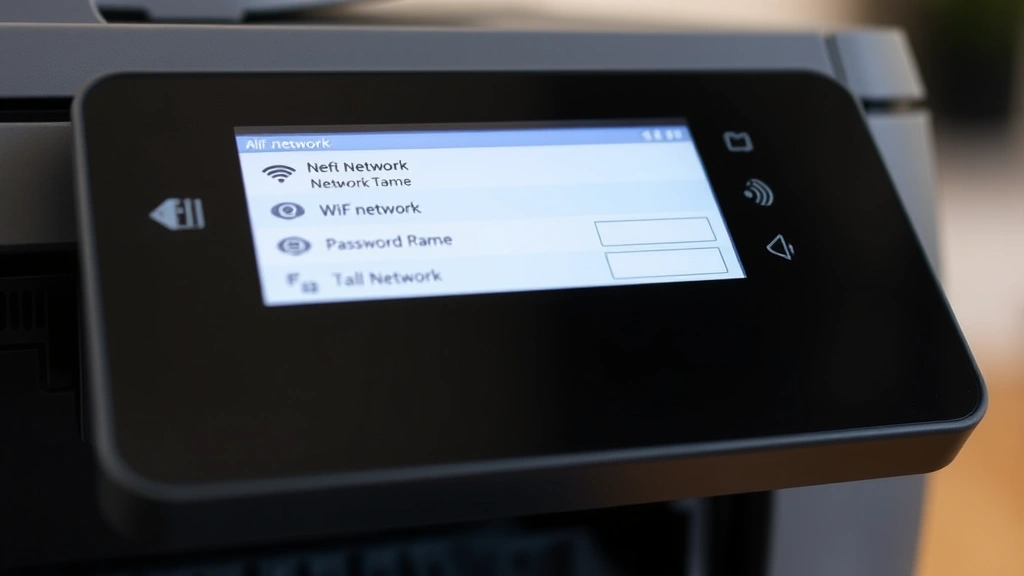
Connect Printer to WiFi: Easy Steps for Beginners
How to Connect Printer to WiFi: Easy Steps for Beginners
Connecting your printer to WiFi might seem intimidating if you’ve never done it before, but the process is surprisingly straightforward. Whether you’re setting up a brand-new printer or finally ditching those tangled USB cables, wireless printing offers convenience and flexibility that makes it worth the effort. In this comprehensive guide, we’ll walk you through every step of the process, troubleshoot common issues, and help you get printing wirelessly in minutes.
Gone are the days when you needed to be sitting right next to your printer to send a document. WiFi-enabled printing allows you to send files from your computer, smartphone, or tablet from anywhere in your home or office. If you’re also looking to expand your home connectivity, you might be interested in learning about connecting other devices wirelessly, which uses similar principles.
Check Your Printer’s WiFi Capability
Before you begin the connection process, you need to confirm that your printer actually has WiFi capability. Not all printers are wireless-enabled, so this is an essential first step. Look for a WiFi symbol or icon on your printer’s body—it typically resembles the standard WiFi symbol with curved lines. Check your printer’s manual or the manufacturer’s website if you’re unsure.
Most modern multifunction printers, including those from major brands like HP, Canon, Epson, and Brother, come with built-in WiFi. However, older or budget models might not have this feature. If your printer lacks WiFi, you might consider upgrading to a newer model or using a USB connection as an alternative. The investment in a wireless printer often pays for itself through increased productivity and convenience.
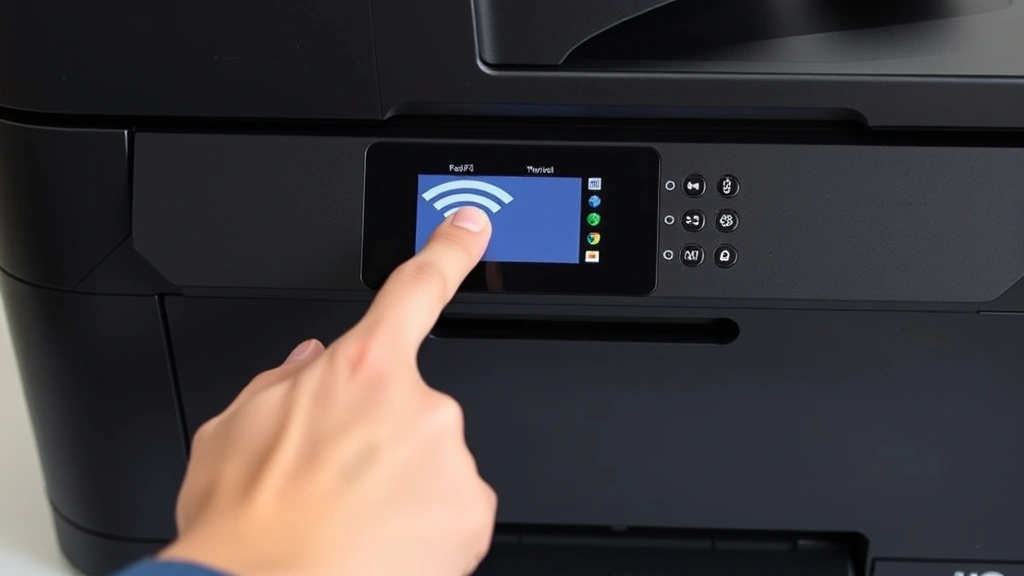
Gather Your Information
Before you start connecting, collect the following information to make the process smoother:
- Your WiFi network name (SSID) – This is the name you see when searching for available networks on your devices
- Your WiFi password – The security key you use to connect other devices to your network
- Printer model number – Found on the printer’s body or in the manual
- Printer’s default username and password – Usually found in the manual or on the manufacturer’s support page
- Access to your printer’s control panel – Most printers have a touchscreen or button interface
Having this information readily available prevents frustration and ensures you won’t need to hunt for it during setup. If you’ve forgotten your WiFi password, you can typically find it in your router’s settings or contact your internet service provider.
Access Your Printer’s Setup Menu
The exact steps to access your printer’s setup menu vary by model, but the general process is similar across most brands. Most modern printers have a touchscreen display where you can navigate settings directly. Here’s the typical approach:
- Turn on your printer and wait for it to fully boot up
- Look for a menu button or home icon on the control panel
- Navigate to Settings or Network Setup
- Select WiFi or Wireless options
- Choose Setup Wizard or WiFi Setup
If your printer doesn’t have a touchscreen, it likely has physical buttons for navigation. Consult your specific printer’s manual for button combinations that access the network menu. Many manufacturers provide quick-start guides online that show exactly where these settings are located.
Some printers also offer a WiFi Protected Setup (WPS) option, which simplifies the connection process by allowing your printer to automatically detect and connect to your network using a PIN or button press on your router.
Connect to Your WiFi Network
Once you’ve accessed the WiFi setup menu, your printer will scan for available networks. This process typically takes 30 seconds to a minute. Here’s what to expect:
- Wait for the printer to display a list of available WiFi networks
- Select your network name (SSID) from the list
- Enter your WiFi password when prompted
- Confirm the password entry
- Wait for the printer to establish the connection
Be extremely careful when entering your password—printers are finicky about capitalization and special characters. If the connection fails, you’ll typically see an error message. Double-check your password and try again. Some printers allow you to view the password as you type, which helps prevent entry errors.
Once connected successfully, your printer should display a confirmation message or show the WiFi signal strength. Note down the IP address that appears on the screen—you may need this later for troubleshooting or advanced configuration.
Install Printer Drivers on Your Computer
A printer driver is software that allows your computer to communicate with your printer. Even though you’ve connected the printer to WiFi, your computer still needs the appropriate driver software. Here’s how to install it:
- Visit the manufacturer’s support website (HP, Canon, Epson, Brother, etc.)
- Search for your specific printer model
- Download the latest driver for your operating system (Windows or Mac)
- Run the installer file and follow the on-screen instructions
- Restart your computer when installation completes
Most manufacturers offer automatic driver detection tools on their websites. You can input your printer model, and the site will automatically provide the correct driver. This eliminates guesswork and ensures compatibility. During installation, the setup wizard usually detects your printer automatically if it’s connected to the same WiFi network.
If the installer doesn’t automatically find your printer, you may need to enter the IP address you noted earlier or select it manually from a list of available printers on your network.
Add Printer to Your Device
After installing drivers on your computer, you need to formally add the printer to your system. The process differs slightly between Windows and Mac, but both are straightforward.
For Windows 10/11:
- Click the Start menu and select Settings
- Navigate to Devices then Printers & Scanners
- Click Add a printer or scanner
- Wait for Windows to search for available printers
- Select your printer from the list and click Add device
For Mac:
- Click the Apple menu and select System Preferences
- Choose Printers & Scanners
- Click the + button to add a new printer
- Select your printer from the list
- Click Add
If your printer doesn’t appear in these lists, ensure it’s powered on, connected to WiFi, and on the same network as your computer. Restarting both devices often resolves discovery issues.
Test Your Connection
Now that everything is set up, it’s time to verify that your wireless printing works correctly. Here’s how to run a test print:
- Open any document or file on your computer
- Click File then Print
- Select your printer from the printer list
- Adjust any print settings as desired (color, orientation, paper size)
- Click Print
If the document prints successfully, congratulations! Your printer is now connected to WiFi and ready for regular use. If nothing prints, check that your printer has paper and ink, and verify the connection status on the printer’s display.
Consider printing a test page directly from your printer’s menu to verify it has paper and is functioning properly. Most printers have a Test Page or Print Configuration option in their settings.
Troubleshooting Common Issues
Even with careful setup, you might encounter problems. Here are solutions to the most common WiFi printing issues:
Printer Not Found During Setup
If your printer doesn’t appear when searching for available devices, try these steps:
- Restart both your printer and WiFi router
- Verify your printer is within range of your WiFi signal
- Check that your router isn’t blocking the printer connection
- Move your printer closer to the router temporarily to test connectivity
- Manually enter the printer’s IP address instead of searching
Connection Drops Frequently
Intermittent disconnections are often caused by WiFi signal strength issues. Solutions include:
- Move your printer closer to the router
- Remove physical obstacles between printer and router
- Change your router channel if interference from neighboring networks exists
- Update your printer’s firmware from the manufacturer’s website
- Reduce interference from other wireless devices
Printer Connected But Won’t Print
This frustrating issue usually stems from driver problems:
- Reinstall printer drivers completely—uninstall first, then reinstall
- Set your WiFi printer as the default printer in your system settings
- Clear the print queue on your computer
- Restart the printer spooler service on your computer
- Check printer settings to ensure it’s not in offline mode
Slow Print Speeds
WiFi printing is naturally slower than USB connections, but excessive delays suggest problems:
- Check your WiFi signal strength and move the printer if needed
- Ensure no other devices are heavily using your bandwidth
- Update printer firmware to the latest version
- Reduce print quality settings if printing non-critical documents
For more detailed troubleshooting, consult Family Handyman’s technology guides or visit your printer manufacturer’s support page directly.
FAQ
Can I connect multiple computers to the same WiFi printer?
Yes, absolutely! This is one of the main advantages of WiFi printing. Multiple computers, tablets, and smartphones on the same network can all print to the same printer. Simply install the printer on each device following the steps outlined above.
What if my printer doesn’t have a touchscreen?
Older printers without touchscreens have physical buttons for menu navigation. Check your manual for the specific button combinations needed to access network settings. Some printers include a small LED display that shows limited information.
Is WiFi printing secure?
WiFi printing is generally secure if your network is password-protected. Ensure your WiFi uses WPA2 or WPA3 encryption for maximum security. Avoid printing sensitive information over public WiFi networks.
Can I print from my smartphone or tablet?
Yes! Most modern printers support mobile printing through apps like Apple AirPrint, Google Cloud Print, or manufacturer-specific apps. Check your printer manual for supported mobile printing methods. If you’re interested in other wireless connectivity options, see our guide on connecting devices wirelessly.
What should I do if I forgot my WiFi password?
You can find your WiFi password by accessing your router’s admin panel through a web browser or mobile app. Alternatively, contact your internet service provider for assistance. Most routers have default login credentials on a sticker on the device itself.
How do I disconnect my printer from WiFi?
Access your printer’s network settings menu and select the option to disconnect from WiFi or forget the network. You can then reconnect to the same or a different network following the standard connection process.
Why is my printer showing as offline even though it’s connected to WiFi?
This usually indicates a communication issue between your computer and printer. Try restarting both devices, checking that they’re on the same network, and removing then re-adding the printer in your system settings. Updating drivers often resolves this issue.

Related Posts

Superscript in Google Docs: Expert Tips

Strikethrough in Excel: Easy Steps for Beginners
