

How to Right Click on a Chromebook: Easy Guide
How to Right Click on a Chromebook: Easy Guide
If you’ve recently switched to a Chromebook, you might be scratching your head wondering where the right-click function went. Unlike traditional laptops with dedicated right-click buttons, Chromebooks operate a bit differently—but don’t worry, right-clicking is absolutely possible. It’s just a matter of knowing the tricks that work best for your specific device and situation.
Whether you’re using a Chromebook with a touchpad, an external mouse, or even a touchscreen, we’ve got you covered. This guide walks you through every method to right-click on a Chromebook, from the simplest approaches to advanced techniques. By the end, you’ll be navigating your Chromebook like a pro, accessing context menus and hidden options with ease.
The beauty of Chromebooks lies in their simplicity and efficiency, but that doesn’t mean functionality takes a backseat. Right-clicking is essential for productivity, whether you’re downloading files, editing documents, or managing your digital workspace. Let’s explore all the ways to make it happen.
Understanding Chromebook Input Methods
Chromebooks come in various configurations, and each one offers different input methods for right-clicking. The most common setups include built-in touchpads, external mice, and touchscreen displays. Understanding your specific hardware is the first step toward mastering right-click functionality.
The Chrome operating system was designed with simplicity in mind, which means right-clicking works slightly differently than on Windows or macOS machines. Instead of a dedicated right-click button, Chromebooks rely on multi-touch gestures, keyboard combinations, or compatible external devices. This approach keeps the device streamlined while maintaining full functionality for power users.
Before diving into specific techniques, check what type of Chromebook you own. Is it a traditional laptop with a touchpad? Does it have a touchscreen? Are you planning to use an external mouse? Each scenario has its own optimal solution, and knowing which applies to you will save time and frustration.
Right-Click with a Touchpad
The touchpad is your Chromebook’s built-in input device, and it’s perfectly capable of executing right-click commands. The most straightforward method involves using a two-finger tap or click on the touchpad surface.
Two-Finger Tap Method: Simply place two fingers on the touchpad simultaneously and tap. This gesture registers as a right-click and brings up the context menu. It’s quick, intuitive, and works in virtually every application and web browser on your Chromebook.
Bottom-Right Corner Click: Some Chromebook touchpads support clicking in the bottom-right corner to trigger a right-click. This mimics the behavior of older trackpads and can be more comfortable if you prefer a single-finger approach. However, the two-finger tap is generally more reliable across different Chromebook models.
Adjusting Touchpad Settings: You can customize how your touchpad responds to right-clicks by navigating to Settings > Device > Touchpad. Here, you’ll find options to enable or disable specific gestures. If two-finger taps aren’t working, this is where you’d troubleshoot or re-enable the feature.
The touchpad method works seamlessly whether you’re browsing the web, editing documents in Google Workspace, or managing files in the file manager. It’s the most accessible solution for Chromebook users since it requires no additional hardware.
Right-Click with an External Mouse
If you’re using an external mouse with your Chromebook, right-clicking becomes even more straightforward. Chromebooks support standard USB and Bluetooth mice, making it easy to connect your preferred peripheral.
Standard Right-Click Button: Simply click the right button on your mouse’s side. It works exactly as you’d expect on any computer. Most external mice have a clearly defined right-click button, making this the most intuitive method for users transitioning from Windows or macOS.
Connecting Your Mouse: To connect a Bluetooth mouse, go to Settings > Device > Bluetooth and enable Bluetooth connectivity. Then place your mouse in pairing mode and select it from the available devices list. USB mice plug in directly and typically work without any additional setup.
Compatibility: Nearly all modern mice are compatible with Chromebooks. Whether you’re using a gaming mouse, a productivity mouse with extra buttons, or a simple wireless mouse, right-clicking will function as expected. This makes external mice an excellent option if you’re doing extended work on your Chromebook.
If you’re looking to optimize your entire setup, consider reviewing how to copy and paste on laptop devices, as these complementary skills enhance your overall productivity on any device.

Right-Click on Touchscreen Chromebooks
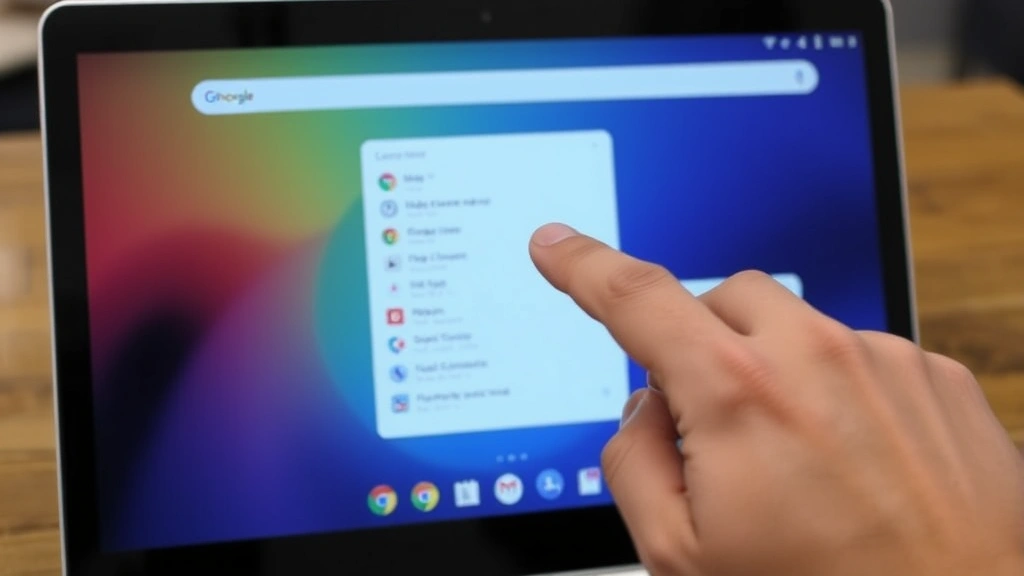
Touchscreen Chromebooks add another dimension to the right-click experience. These devices combine tablet-like interaction with laptop functionality, offering multiple ways to access context menus.
Long Press Method: On touchscreen Chromebooks, press and hold your finger on an element for approximately one second. This long-press gesture triggers a context menu, functioning as a right-click. It’s a natural interaction for anyone familiar with smartphones or tablets.
Two-Finger Tap on Screen: Similar to the touchpad gesture, you can use two fingers to tap the touchscreen simultaneously. This also brings up the context menu and works consistently across different applications.
Combining Input Methods: Touchscreen Chromebooks often have both touchpad and touchscreen capabilities. You can use whichever method feels most comfortable for your current task. Some users prefer the precision of touchpad gestures for detailed work, while others enjoy the directness of touchscreen interaction.
Touchscreen Chromebooks are particularly popular in educational settings and creative fields. If you’re using one, you’ll appreciate how naturally these gesture-based interactions integrate into your workflow.
Keyboard Shortcuts for Context Menus
Beyond mouse and touchpad gestures, Chromebooks offer keyboard-based methods for accessing context menus. These shortcuts are invaluable when your touchpad isn’t responding or you prefer keyboard navigation.
Shift + Search Key: The Search key (located where Caps Lock typically sits on traditional keyboards) combined with Shift brings up a context menu in most applications. This is particularly useful in the file manager and web browsers.
Alt + Click: Holding Alt while clicking with your mouse or trackpad can also trigger a right-click context menu in certain applications, particularly web-based tools and Google applications.
Menu Key: Some external keyboards have a dedicated Menu key (often positioned near the right Ctrl key). Pressing this key opens context menus without requiring any mouse or trackpad interaction. It’s an excellent accessibility feature for users who prefer keyboard navigation.
If you need to perform system-level maintenance on your device, you might also want to familiarize yourself with how to powerwash a Chromebook, which is a useful skill for troubleshooting persistent issues.
These keyboard shortcuts are particularly helpful when you’re working in full-screen applications or when your touchpad is temporarily unavailable. They demonstrate the versatility built into Chrome OS.
Troubleshooting Right-Click Issues
Occasionally, right-click functionality might stop working smoothly. Understanding common issues and their solutions can get you back on track quickly.
Touchpad Not Responding: If two-finger taps aren’t working, first check that the touchpad is enabled. Go to Settings > Device > Touchpad and ensure the toggle is on. If it’s already enabled, try disabling and re-enabling it. You can also visit Settings > Accessibility to see if any accessibility features might be interfering with normal touchpad operation.
Mouse Not Recognized: If your external mouse isn’t right-clicking properly, try unplugging it (or unpairing it via Bluetooth) and reconnecting it. Check that the mouse isn’t set to a special mode that disables right-click functionality. Most gaming mice have mode switches that might affect how buttons are interpreted.
Context Menu Not Appearing: Sometimes the context menu might not appear even when you execute the right-click gesture. This occasionally happens in web applications with limited functionality. Try copying and pasting on MacBook concepts if you’re familiar with them, as similar principles apply to managing clipboard operations across platforms. Alternatively, use keyboard shortcuts like Shift + Search to access the menu.
Gestures Disabled: If you’ve accidentally disabled right-click gestures, you can re-enable them in Settings. Navigate to Settings > Device > Touchpad and look for “Enable tap-to-click” and other gesture options. Make sure all relevant toggles are activated.
Hardware Issues: If none of these solutions work, your touchpad or mouse hardware might be experiencing problems. For external mice, try a different mouse to determine if the issue is device-specific. For built-in touchpads, you might need professional service, though this is rare on Chromebooks.
For comparative reference, if you’re also working across different devices, understanding how to right click on a Mac can help you navigate between platforms more smoothly.
Most right-click issues resolve through simple troubleshooting steps. If problems persist, a quick restart of your Chromebook often resolves temporary glitches.
Frequently Asked Questions
Can you right-click on every Chromebook?
Yes, every Chromebook supports right-click functionality through one method or another. Whether through touchpad gestures, external mice, or keyboard shortcuts, you’ll always have access to context menus and the right-click features you need.
Why doesn’t my Chromebook have a dedicated right-click button?
Chromebooks prioritize simplicity and clean design. By using multi-touch gestures and keyboard combinations instead of dedicated buttons, manufacturers keep the device streamlined while maintaining full functionality. This approach also reduces hardware complexity and potential points of failure.
Is the two-finger tap the only way to right-click with a touchpad?
No, you have several options. The two-finger tap is the most common and reliable method, but you can also click the bottom-right corner of the touchpad (on supported models) or use keyboard shortcuts like Shift + Search to access context menus.
Do all external mice work with Chromebooks?
Most standard USB and Bluetooth mice work perfectly with Chromebooks. However, mice with special gaming features or proprietary software might not function identically. It’s always worth checking the manufacturer’s specifications to confirm Chrome OS compatibility.
What should I do if right-click stops working suddenly?
Start by checking your settings to ensure right-click gestures are enabled. Restart your Chromebook, as temporary glitches often resolve with a reboot. If you’re using an external mouse, try disconnecting and reconnecting it. For persistent issues, visit the Accessibility settings to see if any features are interfering with normal operation.
Can I customize right-click behavior on my Chromebook?
While Chrome OS doesn’t offer extensive customization for right-click behavior itself, you can adjust touchpad sensitivity and gesture settings in Settings > Device > Touchpad. Some web applications and extensions might also offer their own context menu customizations.
Is right-clicking important for productivity on Chromebooks?
Absolutely. Right-clicking is essential for accessing file management options, downloading content, editing documents, and navigating web applications. Mastering right-click functionality is fundamental to efficient Chromebook use, whether you’re a student, professional, or casual user.

Related Posts

How Long to Boil Lobster Tails: Cooking Guide

How Long to Fly from New York to London? Travel Times
