
How to Block No Caller ID on iPhone: Step-by-Step Guide
How to Block No Caller ID on iPhone: Step-by-Step Guide
If you’re tired of mystery calls from unknown numbers, you’re not alone. No Caller ID calls—those frustrating incoming calls where the caller’s information is deliberately hidden—have become increasingly common. Whether it’s spam, telemarketing, or someone you simply don’t want to hear from, blocking these calls is easier than you might think on your iPhone.
The good news? Apple has built several straightforward methods directly into iOS that let you filter out these anonymous calls without needing third-party apps or technical wizardry. We’ll walk you through each option so you can choose the approach that works best for your situation.
Before diving into the blocking methods, it’s worth understanding what “No Caller ID” actually means. When someone calls you with this designation, it means their phone number isn’t being transmitted to your device—either because they’ve intentionally hidden it or because their service provider doesn’t support Caller ID transmission. This is different from blocked numbers, which you might want to find blocked numbers on iPhone for reference purposes.
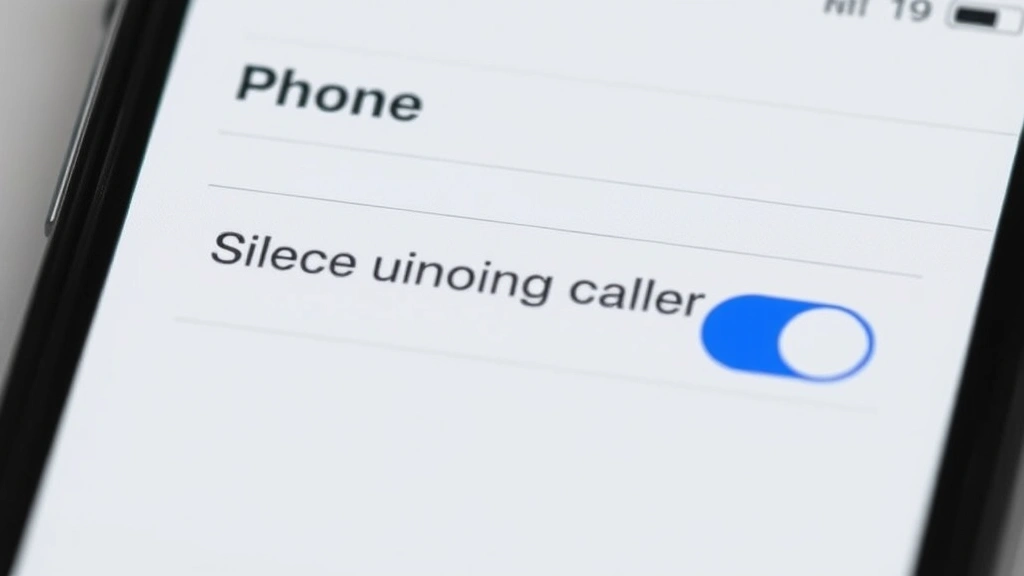
Silencing Unknown Callers
The most effective native solution Apple offers is the “Silence Unknown Callers” feature. This setting automatically sends calls from unknown numbers to voicemail while keeping calls from your contacts ringing through normally. It’s a game-changer for reducing unwanted interruptions.
Here’s how to enable it:
- Open the Settings app on your iPhone
- Scroll down and tap Phone
- Look for Silence Unknown Callers and toggle it ON
That’s it. Once activated, any call from a number not in your contacts will go straight to voicemail. Your phone won’t ring or vibrate for these calls, though you’ll still see them in your recent calls list if you want to check them later. This is particularly useful if you’re concerned about spam calls or want to avoid being disturbed by telemarketers during work hours.
One thing to keep in mind: legitimate callers you don’t know yet—like delivery services, appointment reminders, or customer service calls—will also be silenced. You’ll want to check your voicemail periodically to ensure you’re not missing important messages. If you’re also dealing with contacts you’ve previously blocked, you might want to see blocked numbers on iPhone to review your blocking history.
Filtering Unknown Senders in Messages
While this feature primarily addresses calls, you can also filter messages from unknown senders, which often come from the same sources as spam calls. This creates a comprehensive shield against unwanted contact attempts.
To filter unknown message senders:
- Open Settings
- Tap Messages
- Scroll down to Message Filtering
- Toggle Filter Unknown Senders to ON
With this enabled, text messages from numbers not in your contacts will appear in a separate tab in the Messages app, keeping your main conversation list clean. Combined with call silencing, this creates a two-pronged defense against unwanted contact.
Blocking Specific Contacts Manually
If you know exactly which numbers are bothering you, you can block them individually. This approach is more targeted than blanket filtering and gives you granular control over who can and can’t reach you.
Method 1: Block from Recent Calls
- Open the Phone app
- Go to the Recents tab
- Find the number you want to block and swipe left on it
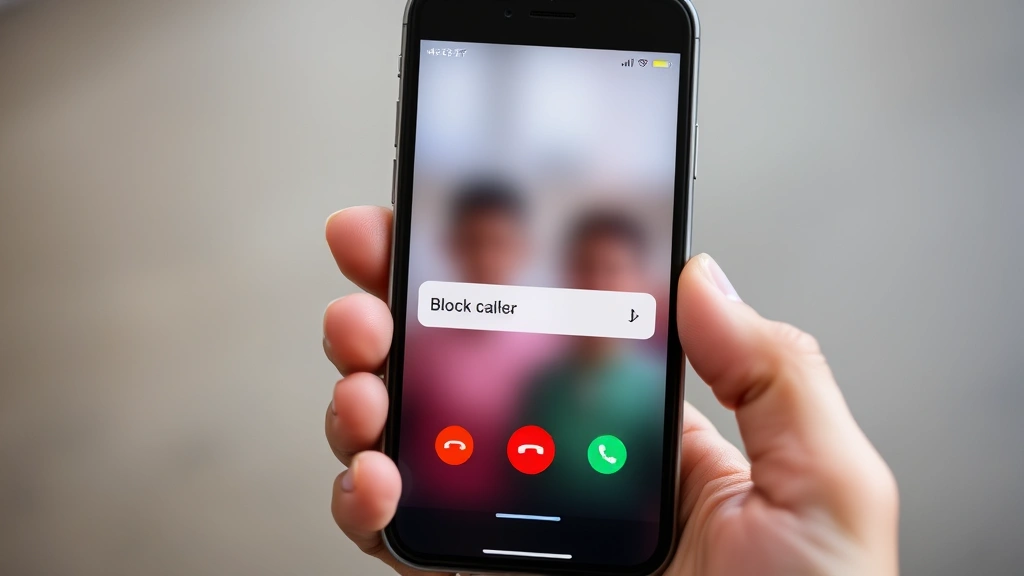
- Tap the red Block this Caller button
Method 2: Block from Contacts
- Open the Contacts app
- Select the contact you want to block
- Tap Edit in the top-right corner
- Scroll down and tap Block this Caller
Method 3: Block During an Active Call
If you’re currently on a call with someone you want to block, you can take action immediately:
- During the call, tap Keypad or swipe up to see more options
- Look for the info button (usually an “i” in a circle)
- Tap Block this Caller
Once you’ve blocked a number, they won’t be able to call or text you. Their calls will go straight to voicemail, and you won’t receive their messages. If you ever change your mind, you can unblock a number on iPhone just as easily.
Using Do Not Disturb Settings for Extra Control
While “Do Not Disturb” isn’t specifically designed for blocking No Caller ID calls, it works as an excellent supplementary tool. You can configure it to allow calls only from your favorites or contacts, effectively creating a whitelist system.
To set up Do Not Disturb with selective call allowances:
- Open Settings
- Tap Focus (or Do Not Disturb on older iOS versions)
- Select Do Not Disturb
- Under Allowed Notifications, choose who can reach you
- Toggle Allow Calls From and select Favorites or Contacts
This approach is particularly useful if you want to maintain peace during certain hours—like during sleep, work meetings, or focused time—while still allowing important contacts through. You can even schedule Do Not Disturb to activate automatically at specific times. For more detailed configuration, check out our guide on how to turn off Do Not Disturb to understand the full range of options available.
Third-Party Call Blocking Apps
For those wanting advanced filtering capabilities beyond what iOS offers natively, third-party call blocking apps provide additional layers of protection. These apps use community-reported spam databases and machine learning to identify potentially unwanted calls before they reach you.
Popular options include:
- Nomorobo – Uses a massive database of known spam numbers to filter calls in real-time
- RoboKiller – Employs AI to identify robocalls and spam patterns
- Whoscall – Provides caller identification and blocking with a community-driven database
- TrueCaller – Offers comprehensive caller ID and blocking features
These apps typically work by integrating with iOS’s call filtering system, allowing them to intercept and evaluate incoming calls before your phone rings. Most require a subscription for full features, though basic versions are often available for free. According to Apple’s official support documentation, third-party apps can be configured in Settings under Phone > Call Blocking & Identification.
Managing Your Blocked List
Over time, you might accumulate a substantial list of blocked numbers. It’s helpful to periodically review and manage this list, especially if circumstances change or you want to give someone a second chance.
To view your blocked contacts:
- Open Settings
- Tap Phone
- Scroll down and select Blocked Contacts
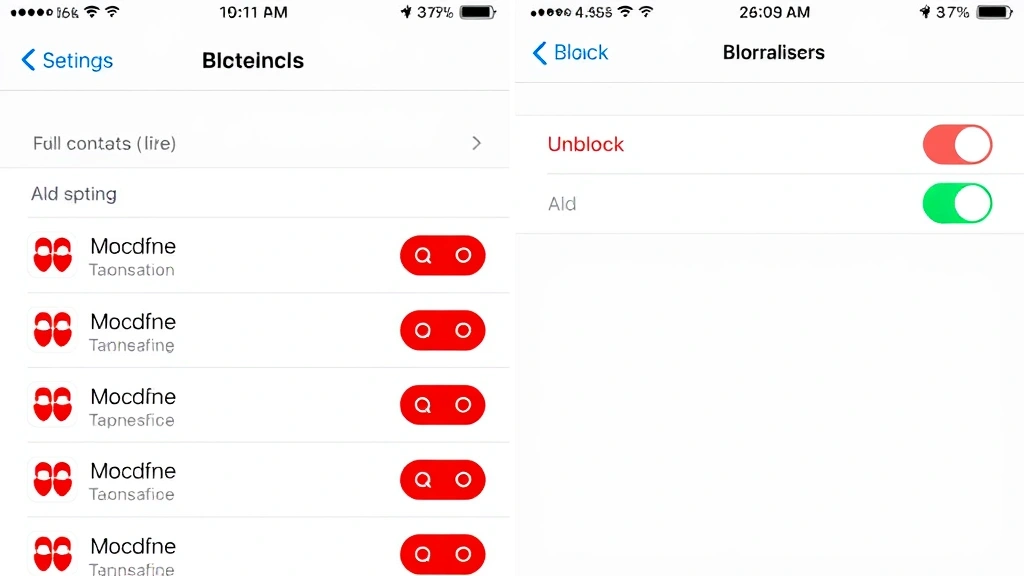
From here, you can see everyone you’ve blocked. If you want to unblock someone, simply swipe left on their name and tap Unblock. This is also where you can find blocked numbers on iPhone if you need to reference who you’ve previously blocked.
It’s worth noting that blocking a contact prevents them from calling, texting, or reaching you through FaceTime. They won’t receive a notification that they’re blocked, but they’ll likely figure it out when their calls go straight to voicemail consistently. If you accidentally block someone important, the unblocking process is straightforward and immediate.
Advanced Tips and Best Practices
Beyond the basic blocking methods, there are several strategies to further reduce unwanted calls:
Register with the Do Not Call Registry – In the United States, you can register your number at donotcall.gov to reduce telemarketing calls. While this won’t eliminate spam entirely, it’s a worthwhile step for reducing volume.
Never Call Back Unknown Numbers – If you receive a call from an unknown number that immediately hangs up or goes silent, don’t call back. This is often a tactic to confirm your number is active and monitored. Calling back can actually increase spam calls to your number.
Be Cautious with Your Number Online – Limit where you share your phone number publicly. Spam lists are often compiled from public directories, social media, and websites. The more selective you are about sharing your number, the fewer unsolicited calls you’ll receive.
Use a Separate Number for Online Services – Consider using a Google Voice number or similar service for online shopping, restaurant reservations, and other non-essential contacts. This keeps your primary number cleaner and less vulnerable to spam.
If you’re curious about the mechanics of how these calls originate, understanding how to call no caller ID can actually help you recognize and avoid these types of calls more effectively. Knowledge is power when it comes to protecting yourself from unwanted contact.
For comprehensive guidance on call management, Apple’s official support page offers detailed tutorials on all iPhone call features. Additionally, the FCC’s guide on unwanted calls provides federal resources and additional protection strategies you might find helpful.
Frequently Asked Questions
Will blocking unknown callers prevent legitimate businesses from reaching me?
Yes, it will. If a business you don’t know tries to call you—like a doctor’s office confirming an appointment or a delivery service with a package—those calls will go to voicemail. You’ll still receive their voicemails and can call them back, so you won’t miss important information, but you won’t get the immediate ring. If you’re expecting calls from specific businesses, consider adding them to your contacts first or temporarily disabling the Silence Unknown Callers feature.
Can blocked callers still leave voicemails?
Yes. When you block someone, their calls go to voicemail, and they can leave messages. However, blocked voicemails appear in a separate “Blocked Messages” section rather than your main voicemail inbox. You can access them through the Phone app if needed, giving you control over whether you listen to them.
If I block someone, can they text me?
No. Blocking prevents both calls and text messages. Their texts won’t reach you, and they won’t receive delivery confirmation. If they try to reach you, they’ll see their message as “sent” but it won’t appear on your device. This is why blocking is such an effective tool for completely cutting off unwanted contact.
Does blocking someone notify them?
Apple doesn’t send a notification to blocked contacts informing them they’ve been blocked. However, after repeated blocked attempts, they may figure it out based on behavior patterns—calls going straight to voicemail, texts not being delivered, etc. There’s no official notification, though.
Can I block calls from private numbers?
The “Silence Unknown Callers” feature effectively blocks calls from private numbers since they appear as unknown. However, if you want to block specific private numbers you’ve identified, you’d need to block them individually after they call. Unfortunately, you can’t proactively block all private numbers with a single setting—you can only block them as they appear in your recent calls.
What’s the difference between blocking and silencing unknown callers?
“Silencing Unknown Callers” sends all calls from numbers not in your contacts to voicemail automatically. “Blocking” is when you specifically block an individual number or contact. Silencing is broader and more automated, while blocking gives you targeted control over specific numbers. You can use both simultaneously for maximum protection.
If I turn off Silence Unknown Callers, will blocked numbers start calling me again?
No. Those are separate features. Blocking specific numbers prevents them from reaching you regardless of whether you have “Silence Unknown Callers” enabled. Disabling the silencing feature will only affect calls from unknown numbers you haven’t specifically blocked.
Can I use multiple methods at once?
Absolutely. In fact, combining multiple protection methods is recommended. You can have “Silence Unknown Callers” enabled, have specific numbers blocked, use “Filter Unknown Senders” for messages, and even schedule Do Not Disturb—all simultaneously. This layered approach provides comprehensive protection against unwanted contact.

Related Posts

How Long to Boil Lobster Tails: Cooking Guide

How Long to Fly from New York to London? Travel Times
