
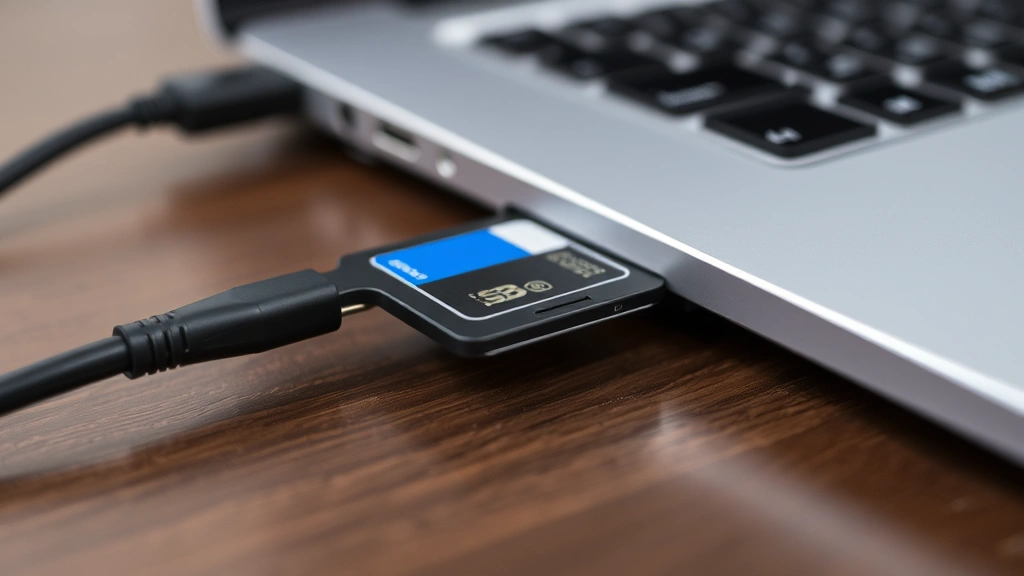
How to Format SD Card: Expert Guide
How to Format SD Card: Expert Guide for Maximum Performance
SD cards have become essential storage companions in our digital lives, whether you’re using them in cameras, drones, gaming consoles, or smartphones. But here’s the thing—just like any storage device, SD cards need proper maintenance to keep running smoothly. Formatting an SD card isn’t just about wiping it clean; it’s about optimizing performance, fixing corrupted files, and preparing it for fresh use.
The process might sound technical, but it’s surprisingly straightforward once you understand what’s happening behind the scenes. Think of formatting as giving your SD card a complete reset—removing all existing data and preparing the file system for new information. Whether you’re troubleshooting issues or simply wanting to repurpose an old card, this guide will walk you through every method available to you.
The good news? You likely already have all the tools you need. Whether you’re on Windows, macOS, or working directly from your device, we’ll cover every scenario so you can format your SD card with confidence.
Why You Should Format Your SD Card
Many people think formatting is something you only do when something goes wrong, but that’s actually a misconception. Regular formatting offers several legitimate benefits that extend beyond emergency repairs.
First, formatting clears out file system errors and corruption that accumulate over time. When you repeatedly delete and add files, your card’s file system can develop fragmentation—essentially, scattered data that slows down read and write speeds. A fresh format reorganizes everything efficiently.
Second, formatting ensures compatibility. If you’re moving an SD card between different devices—say, from your old camera to a new one—formatting guarantees the card will work optimally with its new home. Different devices sometimes use different file systems, and formatting resolves these compatibility headaches.
Third, it’s a security measure. If you’re selling, donating, or recycling an SD card, formatting erases your personal data. While standard formatting isn’t completely secure against determined data recovery attempts, it’s a solid first step in protecting your privacy. If you’re dealing with sensitive information, you might want to explore secure erase options we’ll discuss later.
Finally, formatting can resolve mysterious issues like cards not being recognized, files becoming inaccessible, or devices refusing to write data. Often, a simple format fixes these problems without requiring technical support.
Before You Start: Important Precautions
Before you dive into the formatting process, let’s talk about the critical step everyone should take: backing up your data. Seriously. Formatting is permanent and irreversible. Once you start the process, everything on that card is gone. There’s no undo button, no recovery (unless you hire expensive data recovery services). So take five minutes, copy your files to your computer, external drive, or cloud storage.
Here’s what else you should know before proceeding:
- Check the card’s physical condition – Look for visible damage, cracks, or corrosion on the contacts. A damaged card might not format properly or could fail during use.
- Ensure adequate power – If formatting on a device, make sure your battery is sufficiently charged. A power loss mid-format can corrupt the card permanently.
- Use a reliable card reader – Cheap or malfunctioning card readers can cause formatting problems. A quality reader makes the process smoother.
- Remove other storage devices – When formatting on a computer, disconnect other external drives to avoid accidentally formatting the wrong device.
- Verify you’re formatting the correct card – Double-check the card’s capacity and name before confirming the format operation.
If you’re maintaining your computer’s health while working on these tasks, you might want to check how to check PC temps to ensure your system stays cool during file transfers and formatting operations.
Formatting on Windows
Windows makes formatting SD cards incredibly simple. You have multiple approaches depending on what you’re comfortable with.
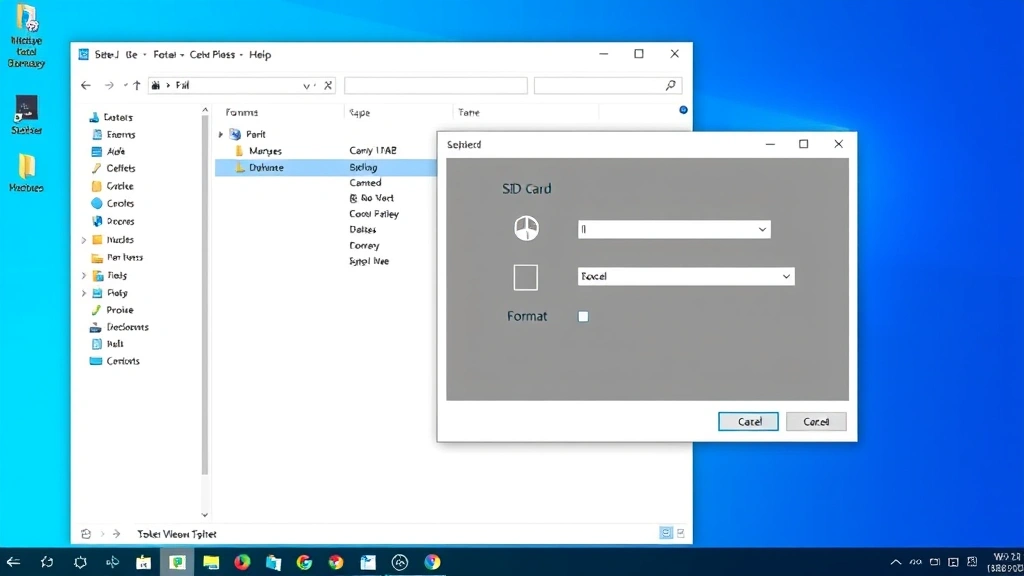
Method 1: Using File Explorer (Easiest)
This is the most straightforward approach for most users:
- Insert your SD card into your computer’s card reader or USB adapter
- Open File Explorer and locate your SD card in the left sidebar
- Right-click on the SD card and select “Format” from the context menu
- A dialog box appears—give your card a name (like “SD Card” or “Camera Storage”)
- Select your file system. For most modern devices, choose exFAT (works with cameras, game consoles, and most devices) or FAT32 (older devices, smaller capacity cards)
- Leave “Allocation unit size” on “Default”
- Check the “Quick Format” box if you want the process to complete in seconds (uncheck it for a thorough format that overwrites data)
- Click “Start” and confirm the warning message
That’s it. Your card will format in seconds (for quick format) or a few minutes (for full format). Windows will show you a completion message when finished.
Method 2: Using Disk Management (More Control)
For users who want more detailed control over the formatting process:
- Right-click the Start button and select “Disk Management”
- Your SD card will appear in the list of drives
- Right-click on the SD card partition and select “Format”
- Enter a volume label and choose your file system
- Confirm the operation
This method gives you the same results as File Explorer but offers a slightly different interface and additional visibility into your system’s storage structure.
Method 3: Using Command Prompt (Advanced)
If you’re comfortable with command-line interfaces, you can format using Command Prompt:
- Press Windows + R, type “cmd”, and press Enter
- Type: format X: /FS:exFAT (replace X with your SD card’s drive letter)
- Press Enter and confirm when prompted
This method is faster and gives you precise control over formatting parameters. It’s particularly useful if the graphical interface isn’t working properly.
Formatting on macOS
Mac users have equally simple options for formatting SD cards, with the added benefit of Disk Utility, which is genuinely one of the best storage management tools available.
Using Disk Utility (Recommended)
- Insert your SD card into your Mac’s SD card slot or connect via USB reader
- Open Finder and navigate to Applications > Utilities > Disk Utility
- Select your SD card from the left sidebar (it will show the card’s capacity and name)
- Click the “Erase” button at the top of the window
- Enter a name for your card
- Choose your format. Select ExFAT for compatibility with multiple devices, or Mac OS Extended if using the card exclusively with Macs
- Click “Erase” and confirm
Disk Utility completes the formatting almost instantly and shows a confirmation message. If you need to thoroughly erase data for security purposes, Disk Utility offers security options in the erase dialog.
Using Terminal (Advanced)
Mac’s Terminal offers command-line formatting for users who prefer it:
- Open Applications > Utilities > Terminal
- Type: diskutil secureErase 0 exFAT “SD Card” /Volumes/[CardName]
- Replace [CardName] with your card’s actual name
- Press Enter and wait for completion
This method is particularly useful for secure erasing sensitive data, as it overwrites the card multiple times.
Formatting Directly on Your Device
Many devices allow you to format SD cards directly without needing a computer. This is often the most convenient approach.
Cameras (DSLR, Mirrorless, Point-and-Shoot)
Most digital cameras include a format option in their menu system:
- Insert the SD card into your camera
- Navigate to the camera’s main menu (usually accessed via a button on the back)
- Look for “Format Card” or “Format Memory” option
- Select it and confirm the warning message
- The camera will format the card in seconds
This approach is ideal because the camera formats the card to its exact specifications, ensuring perfect compatibility.
Gaming Consoles (Nintendo Switch, PlayStation, Xbox)
Console formatting varies by device:
Nintendo Switch: Settings > Data Management > Manage Software > Format microSD Card
PlayStation 5: Settings > Storage > Format Extended Storage
Xbox Series X/S: Settings > System > Storage > Format Storage Device
Smartphones and Tablets
Most modern smartphones don’t support SD card formatting through their settings, but some Android devices do:
- Go to Settings > Storage > SD Card
- Look for “Format SD Card” or “Erase SD Card”
- Confirm the operation
If your device doesn’t offer this option, you’ll need to use a computer or card reader.
Advanced Formatting Tools
For users dealing with problematic cards or wanting more control, several specialized tools exist.
SD Association’s SD Memory Card Formatter
The official tool from the SD Card Association is specifically designed for formatting SD cards:
- Download from SD Association’s official website
- Install and run the application
- Select your SD card and choose format options
- This tool is particularly useful for cards that aren’t recognized by standard formatting methods
EaseUS Partition Master
This comprehensive partition and formatting tool offers advanced features:
- Works on both Windows and Mac
- Provides secure erase options for sensitive data
- Offers detailed information about your card’s current status
- Useful for recovering from severe file system errors
Rufus (Windows)
While primarily designed for creating bootable USB drives, Rufus also formats SD cards efficiently:
- Download from Rufus’s official site
- Select your SD card and desired file system
- Offers quick or thorough formatting options
When you’re maintaining your tech setup, remember that keeping your system clean helps everything run better. Similar to how how to powerwash a Chromebook refreshes a device, formatting your SD card gives it a fresh start.
Troubleshooting Common Issues
SD Card Not Recognized
If your computer doesn’t detect your SD card:
- Try a different card reader (the current one might be faulty)
- Use a different USB port on your computer
- Restart your computer with the card inserted
- Check if the card has a write-protect switch (small slider on the side) and ensure it’s not locked
- Use the SD Association’s formatter tool as it’s specifically designed to handle recognition issues
Formatting Fails or Freezes
If the formatting process hangs or produces errors:
- Ensure your power supply is stable (use a laptop’s AC adapter, not battery)
- Close all other applications to free up system resources
- Try formatting with a different tool (switch from File Explorer to Command Prompt, for example)
- If the card is severely corrupted, use the SD Association’s official formatter
- As a last resort, try formatting from a different computer
Card Becomes Inaccessible After Formatting
If your card is formatted but now shows as “raw” or unformatted:
- Reformat it again using the correct file system for your device
- Check your device’s manual for recommended file systems (some older cameras require FAT32)
- Use Disk Utility (Mac) or Disk Management (Windows) to verify the format completed successfully
Write-Protection Issues
Some cards have a physical write-protect switch:
- Locate the small slider on the card’s side
- Ensure it’s in the unlocked position (usually marked with an open lock icon)
- If the switch is broken, the card might not accept formatting or new data
If you’re troubleshooting your entire tech setup, you might also want to understand basic maintenance like how to disconnect car battery for vehicle-based devices that use SD cards.
Frequently Asked Questions
What’s the difference between quick format and full format?
Quick format removes the file system references without actually erasing data—it’s fast but less secure. Full format overwrites all data on the card, making recovery nearly impossible. For general use, quick format is fine. For security-sensitive situations, use full format. The full format takes longer but provides better data protection.
Can I recover data after formatting an SD card?
Technically, yes—if you used quick format, specialized data recovery software might retrieve files. However, full format makes recovery extremely difficult. The best approach is always to back up important files before formatting. If you accidentally formatted a card with important data, stop using it immediately and consult a professional data recovery service before attempting any DIY recovery.
Which file system should I use: FAT32, exFAT, or NTFS?
FAT32: The oldest standard, compatible with almost everything but limited to 4GB file size maximum. Use for older cameras or devices requiring maximum compatibility.
exFAT: Modern standard that works with cameras, gaming consoles, and most devices. Supports files larger than 4GB. This is the best choice for most users.
NTFS: Primarily for Windows computers. While some modern cameras support it, exFAT is generally better for SD cards used across multiple devices.
How often should I format my SD card?
Most users don’t need to format regularly. Format only when: moving the card to a new device, experiencing performance issues, preparing to sell or donate the card, or troubleshooting compatibility problems. Regular formatting isn’t necessary for healthy cards.
Is formatting the same as deleting files?
No. Deleting files removes individual items while keeping the file system intact. Formatting wipes everything and rebuilds the file system from scratch. Formatting is much more thorough and permanent.
Can I format an SD card in a card reader while it’s in my camera?
No. The card must be physically removed from the camera and inserted into a dedicated card reader connected to your computer. Some cameras allow formatting through the camera’s menu, which is the proper way to format while the card is installed.
What if my SD card is showing as “corrupted”?
A corrupted card often can be rescued through formatting. Use the SD Association’s official formatter tool first, as it’s specifically designed to handle corrupted cards. If that doesn’t work, try formatting from a different computer or using advanced tools like EaseUS Partition Master.
Is it safe to format SD cards frequently?
Yes. SD cards are designed to handle thousands of write cycles. Formatting doesn’t wear them out like repeated deletes might. Modern SD cards are quite durable, but like any storage device, they do have a finite lifespan. Formatting won’t significantly impact longevity.

Related Posts

How Long to Boil Lobster Tails: Cooking Guide

How Long to Fly from New York to London? Travel Times
